
Help/Languages/Choose your languages
Choose your languages
Show your site in Japanese, German or Thai as well as English. Each language gets its own address, like yoursite.com/ja, and anything not yet translated shows in English.
Translator is an add-on. If you can't see Languages in Settings, an Owner can add it on Settings · Plan, in Add to your plan.
2 minutesOwners onlyWorks on a phone
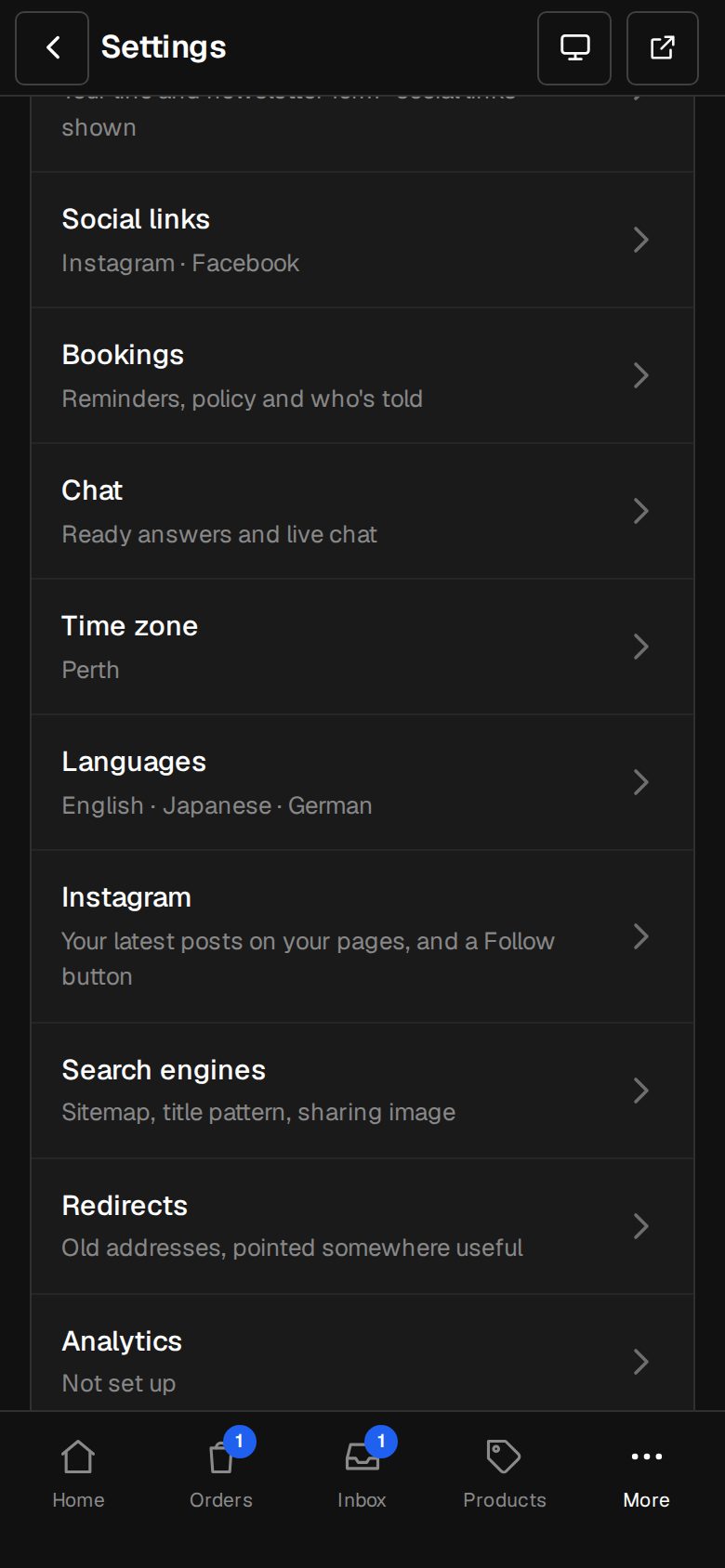
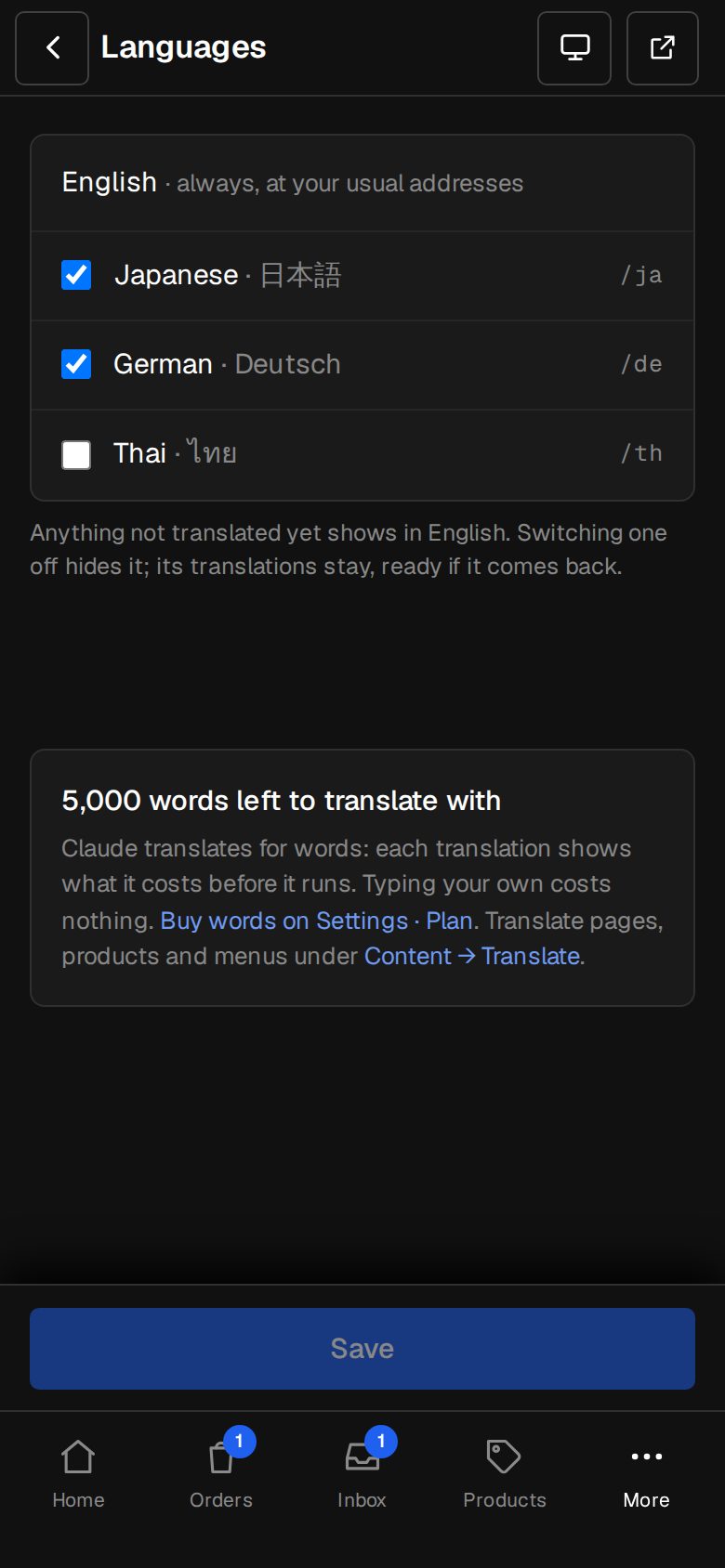
Open Settings, then Languages
On a computer, choose Settings in the sidebar. On a phone, tap More, then Settings. Languages is under Your site.
Tick your languages
English is always on, at your usual addresses. Tick Japanese, German or Thai. Each shows the address it uses: /ja, /de or /th.
Save
Tap Save. Translate then appears along the top of Content, with every page, product, category and your menus.
Translate something
See Translate a page, product or menu. Each item shows in a language only once its translation is switched On the site.
Check the switcher
Your site's footer and its phone menu list English and each language in its own script, like 日本語 or ไทย. A visitor's choice is remembered as they move around your site.
Good to know
- Switching a language off hides it. Its translations stay, ready if you switch it back on.
- /ja, /de and /th are kept for the languages, so no page, product or category can use them as its address.
- The shop's own words, like Add to cart, the checkout and sign-in, are already translated for you at no cost.
- Search engines are told about each language only for items published in it.
Was this helpful?