
Help/Languages/Translate a page, product or menu
Translate a page, product or menu
Content, then Translate lists everything on your site that can be translated, and where each language stands. Type a translation yourself at no cost, or let Claude draft it for words. Claude's drafts always wait for you to read them before they go on your site.
Translator is an add-on an Owner adds on Settings · Plan, with at least one language chosen on Settings · Languages.
2 minutesManagers and OwnersWorks on a phone
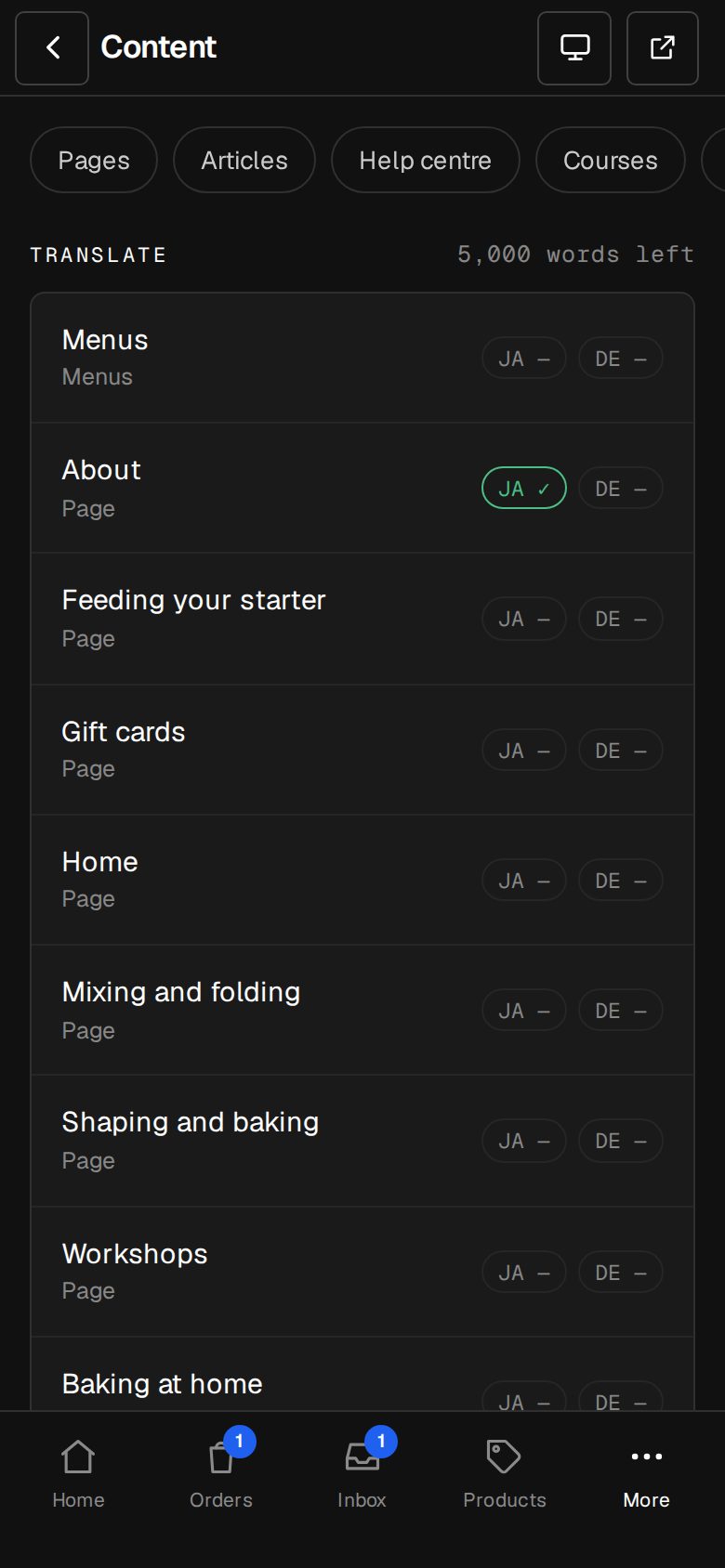
Open Content, then Translate
On a computer, choose Content in the sidebar. On a phone, tap More, then Content. Tap Translate along the top.
Pick what to translate
Each row shows each language: ✓ on the site, draft not yet, or — not started. Tap a page, category, product or Menus.
Choose the language
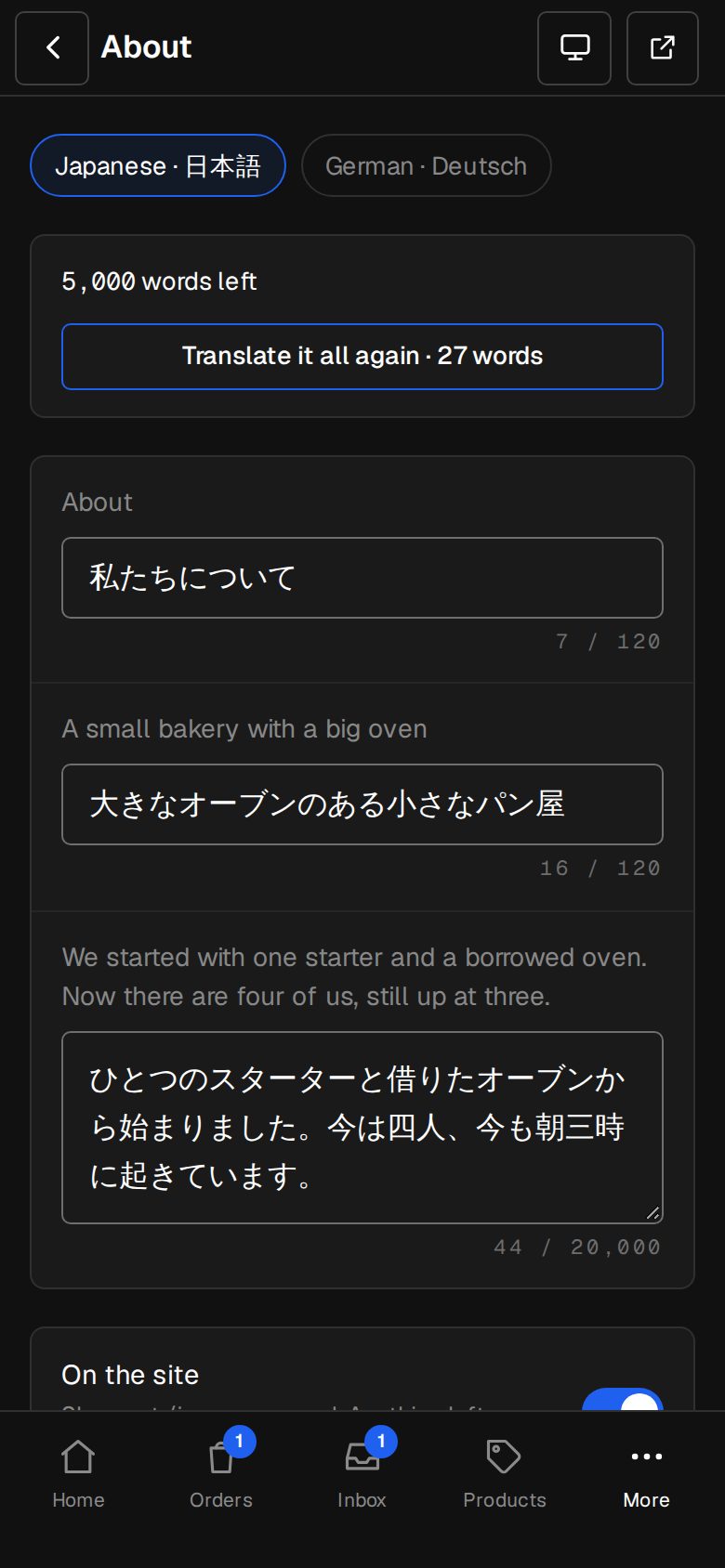
Tap a language at the top. The English is on the left, a box for each part on the right. A box left empty shows the English.
Type it, or ask Claude
Type your own words, or tap Translate what's empty. The button shows how many words it uses. Once everything is filled, it's Translate it all again.
Read Claude's draft
Claude's words always land as a draft, off the site. Read them through and fix anything. Each box shows how long it can be.
Put it on the site
Turn on On the site and tap Save. It shows at /ja, /de or /th straight away.
Good to know
- Only words are translated. Links, pictures, prices and colours always come from the English.
- If the English changes later, the field is marked English changed, and your site shows the English there until you retype it or tap Still right, then Save.
- Translating it all again takes the item off the site until you switch it back on.
- If Claude's words don't fit, nothing is saved and your words aren't used.
Was this helpful?