
Help/Connections/Connect Xero
Connect Xero
Paid orders, the invoices you send from here and refunds go into your Xero by themselves: a sales invoice paid into your bank account, or a credit note. No typing them in twice.
Xero is an add-on, listed on Settings · Plan & add-ons under Connect your other tools. If it isn't listed yet, ask us through Get help.
2 minutesOwners, with the authenticator appWorks on a phone
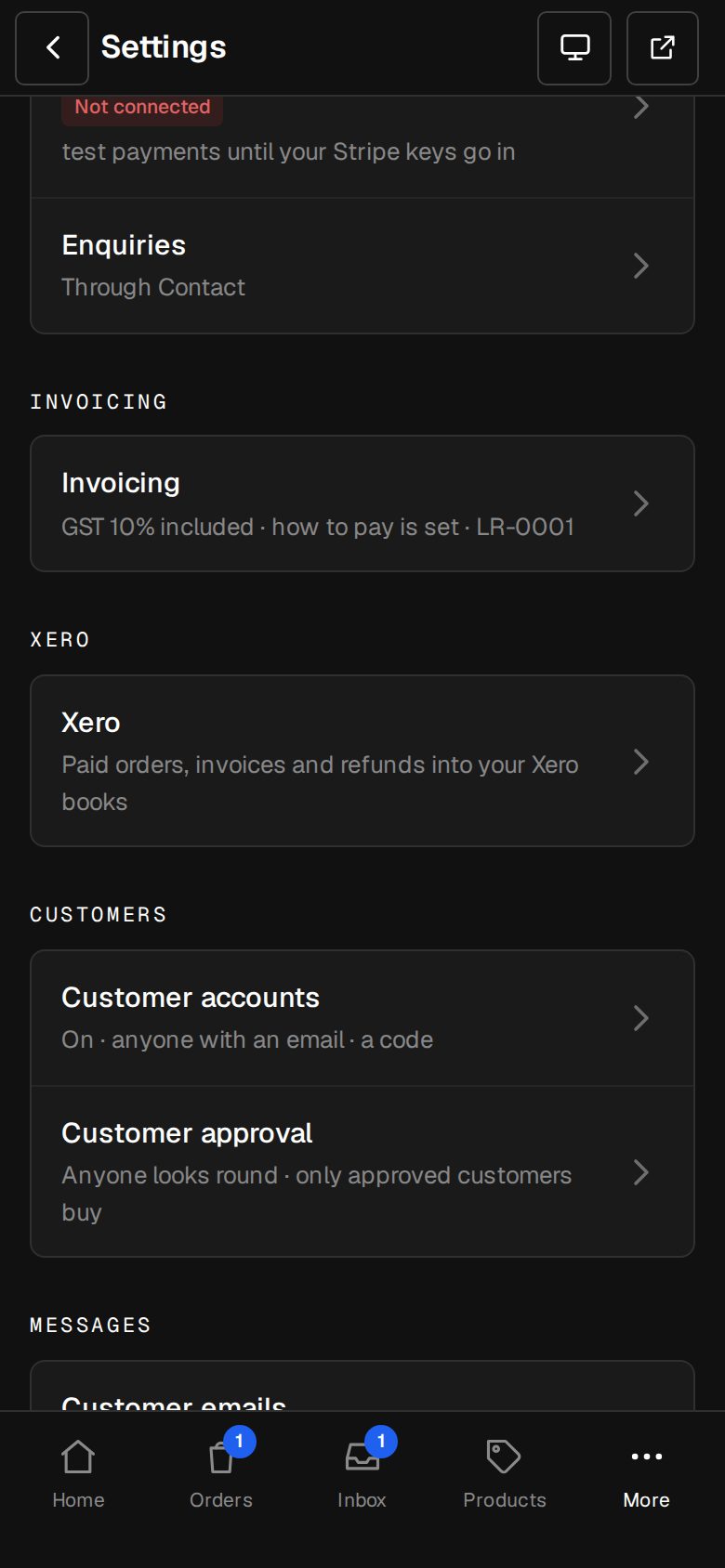
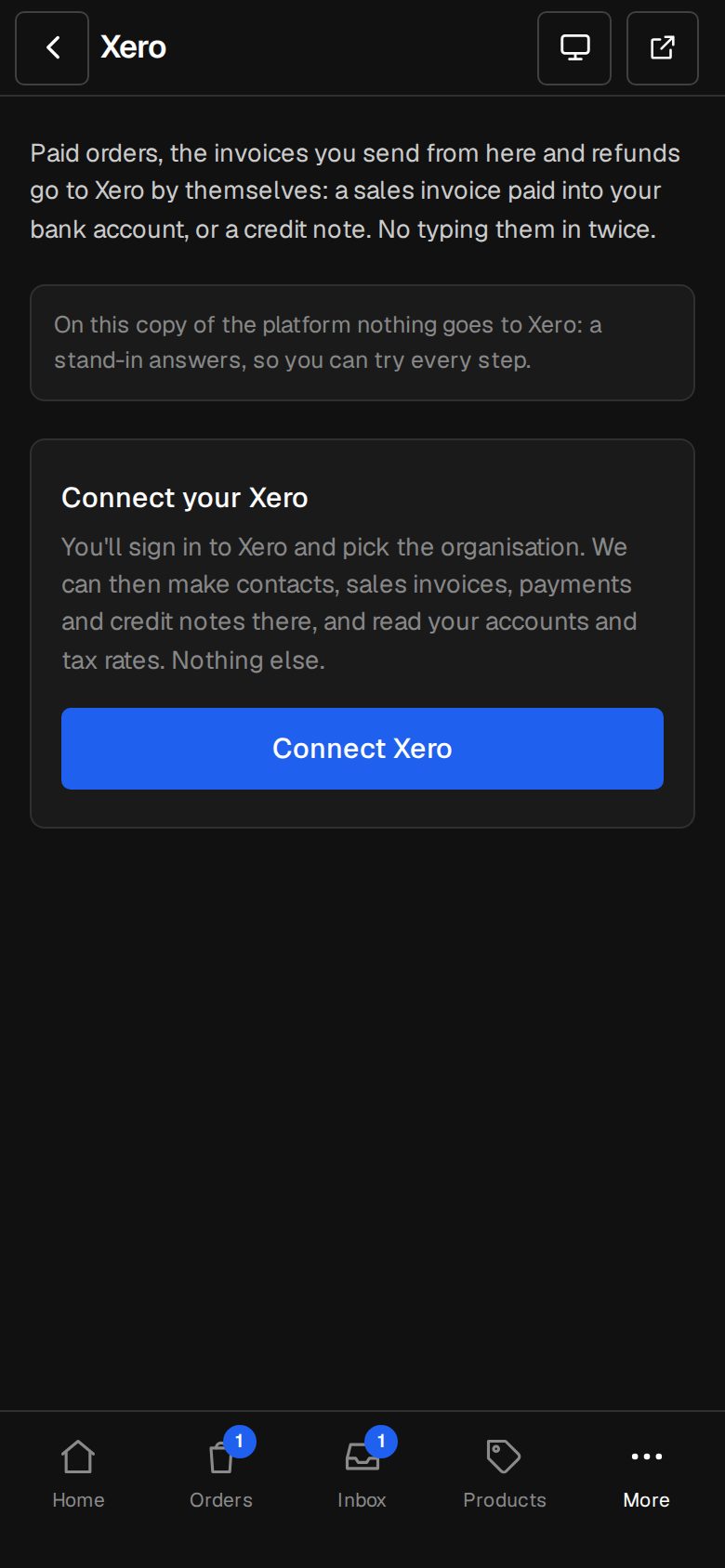
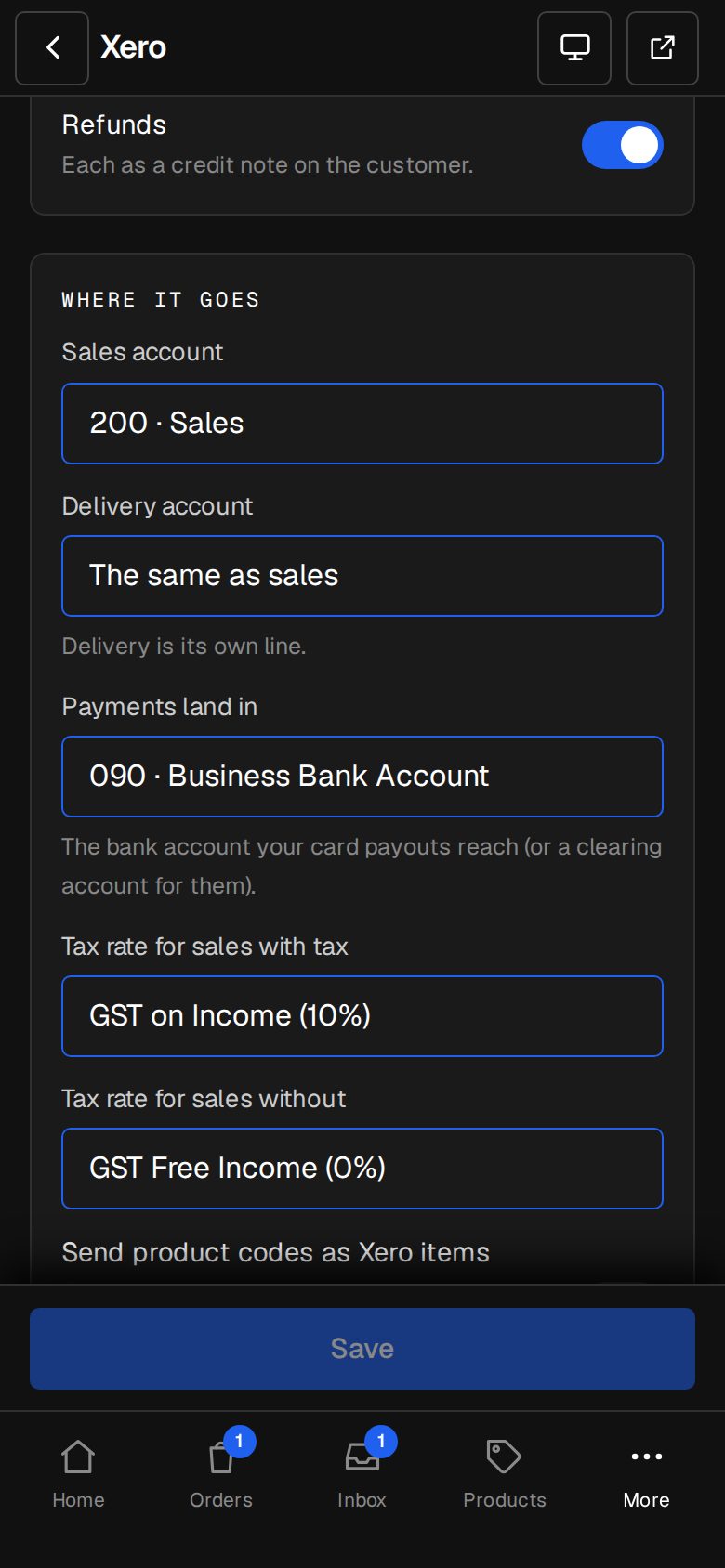
Open Settings, then Xero
On a phone, tap More, then Settings. Xero has its own group once the add-on is on.
Tap Connect Xero
Sign in to Xero and allow output/input. We can make contacts, sales invoices, payments and credit notes there, and read your accounts and tax rates. Nothing else.
Pick the organisation
If your Xero has more than one, choose it and tap Use this one.
Choose What goes to Xero
Paid orders, Invoices you send from here, once paid, and Refunds. A shop order's own invoice goes as the order, never twice.
Set Where it goes
Pick the Sales account, the Delivery account, the bank account Payments land in, and the tax rates for sales with and without tax. They come from your Xero. Made a new one there? Tap Read them again.
Turn on Send to Xero by itself
Each one goes within ten minutes of being paid. Tap Save in the bar at the bottom.
Good to know
- Send product codes as Xero items only when every product's code is an item in Xero, or Xero turns the invoice down.
- Something Xero refuses is tried again, then shown on the order or invoice with Send again.
- If Xero stops letting us in, the screen says Needs connecting again and the Owners are emailed. Nothing waiting is lost.
- Disconnect stops sending and forgets the connection. What's already in Xero stays there.
Was this helpful?