
Help/Newsletters/See who opened and clicked
See who opened and clicked
After a newsletter goes out, it shows how it did: how many were delivered, opened and clicked, and how many unsubscribed or bounced. These are totals for the newsletter. o/i doesn't list which people opened or clicked.
Newsletters is an add-on. If you can't see it, an Owner can add it under Settings · Plan, in Add to your plan.
2 minutesOwners and ManagersWorks on a phone
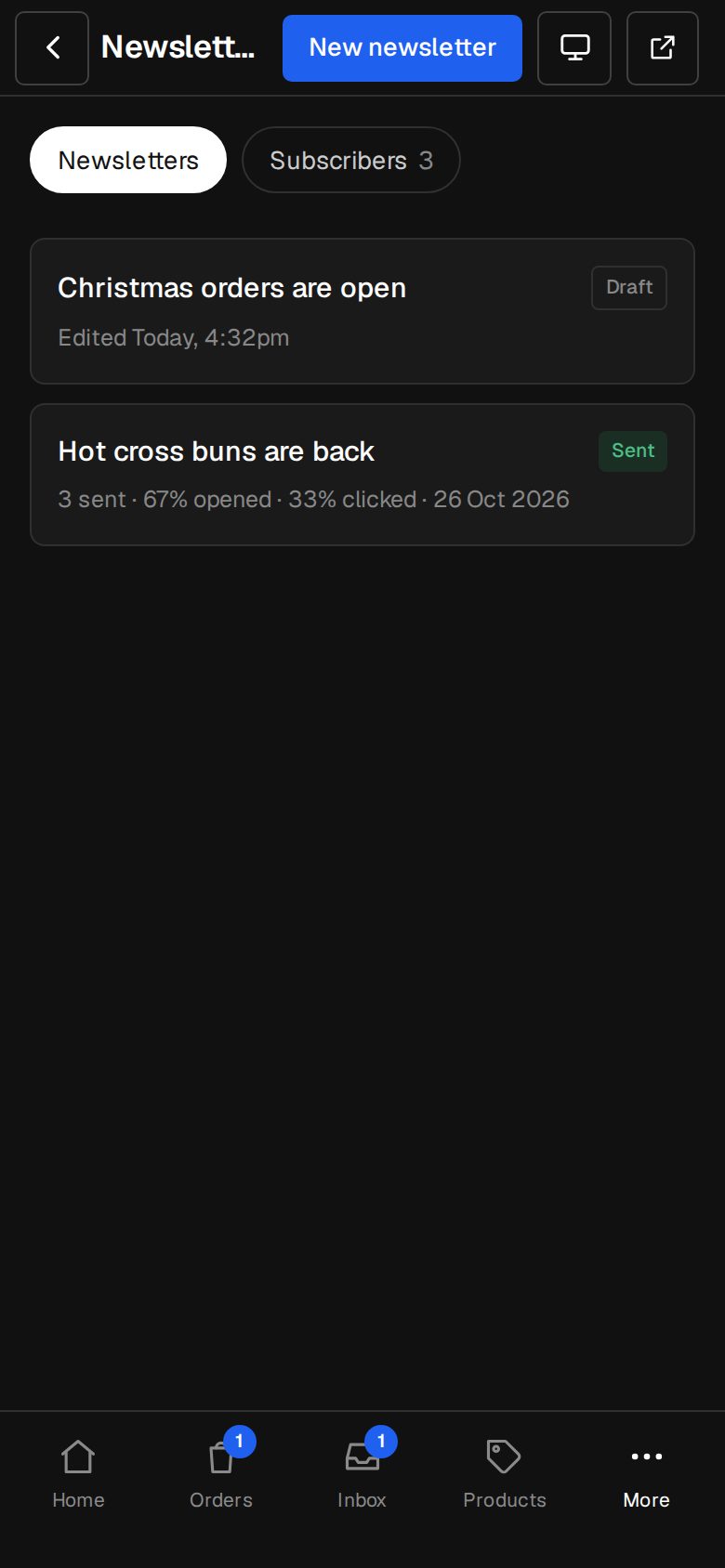
Open Newsletters
On a computer, choose Newsletters in the sidebar. On a phone, tap More, then Newsletters. Each sent one shows how many it went to, the share opened and clicked, and the day.
Open one
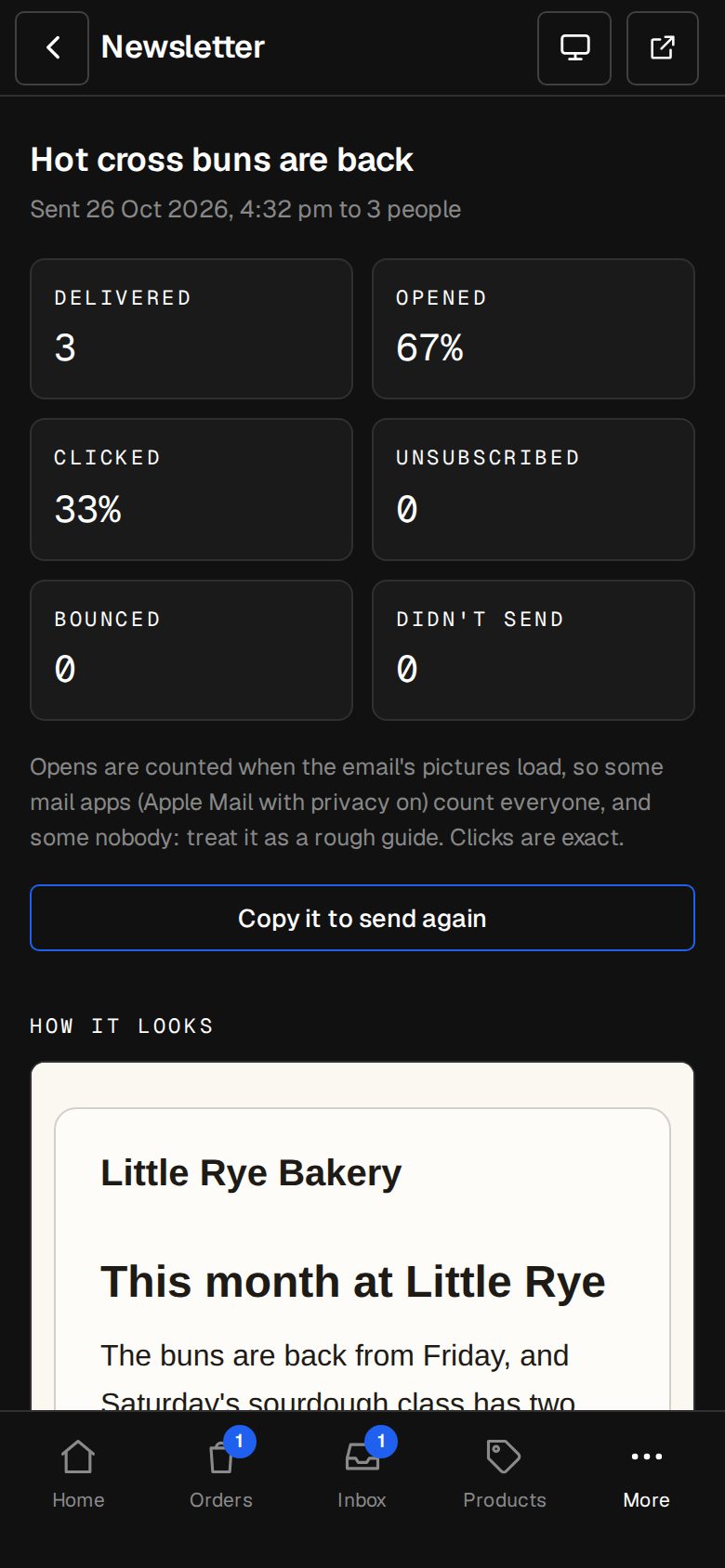
Tap a sent newsletter to see Delivered, Opened, Clicked, Unsubscribed, Bounced and Didn't send. While it's still going out it says how many are left; reload to see it move.
Read opens as a guide
Opens are counted when the email's pictures load. Some mail apps, such as Apple Mail with privacy on, count everyone, and some count nobody. Clicks are exact.
Check bounces and complaints
On Subscribers, Bounced lists addresses that couldn't take mail, and Marked as spam lists people who reported it. Neither is sent to again.
See who left
Unsubscribed on Subscribers lists people who've left. Every newsletter carries an unsubscribe link, and mail apps can offer one-tap unsubscribe.
Send it again
Tap Copy it to send again for a fresh draft of the same newsletter, to change and send.
Good to know
- Opened and Clicked are shares of those delivered. Each person counts once, however many times they open or click.
- Didn't send counts emails that couldn't be handed over for delivery.
- Marked as spam is for good: that person is never added to your list again.
Was this helpful?