
Help/Newsletters/Write and send a newsletter
Write and send a newsletter
A newsletter is built from blocks: headings, words, pictures, buttons, products and your latest articles. o/i draws it in your site's colours, with your address and an unsubscribe link, and sends it to everyone subscribed or only those with certain tags.
Newsletters is an add-on. If you can't see it, an Owner can add it under Settings · Plan, in Add to your plan.
2 minutesOwners and ManagersWorks on a phone
Start one
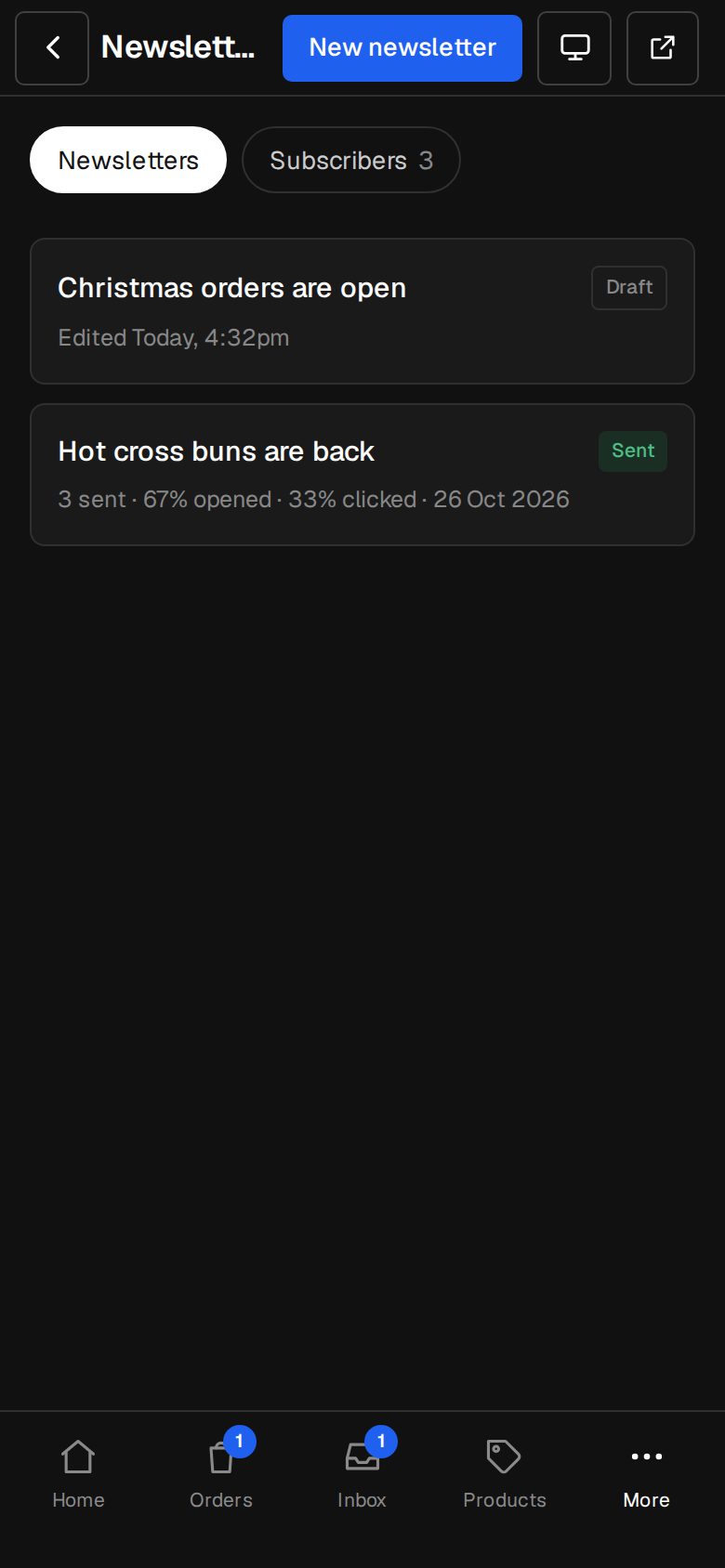
Open Newsletters (on a phone, tap More, then Newsletters) and tap New newsletter.
Subject and preview line
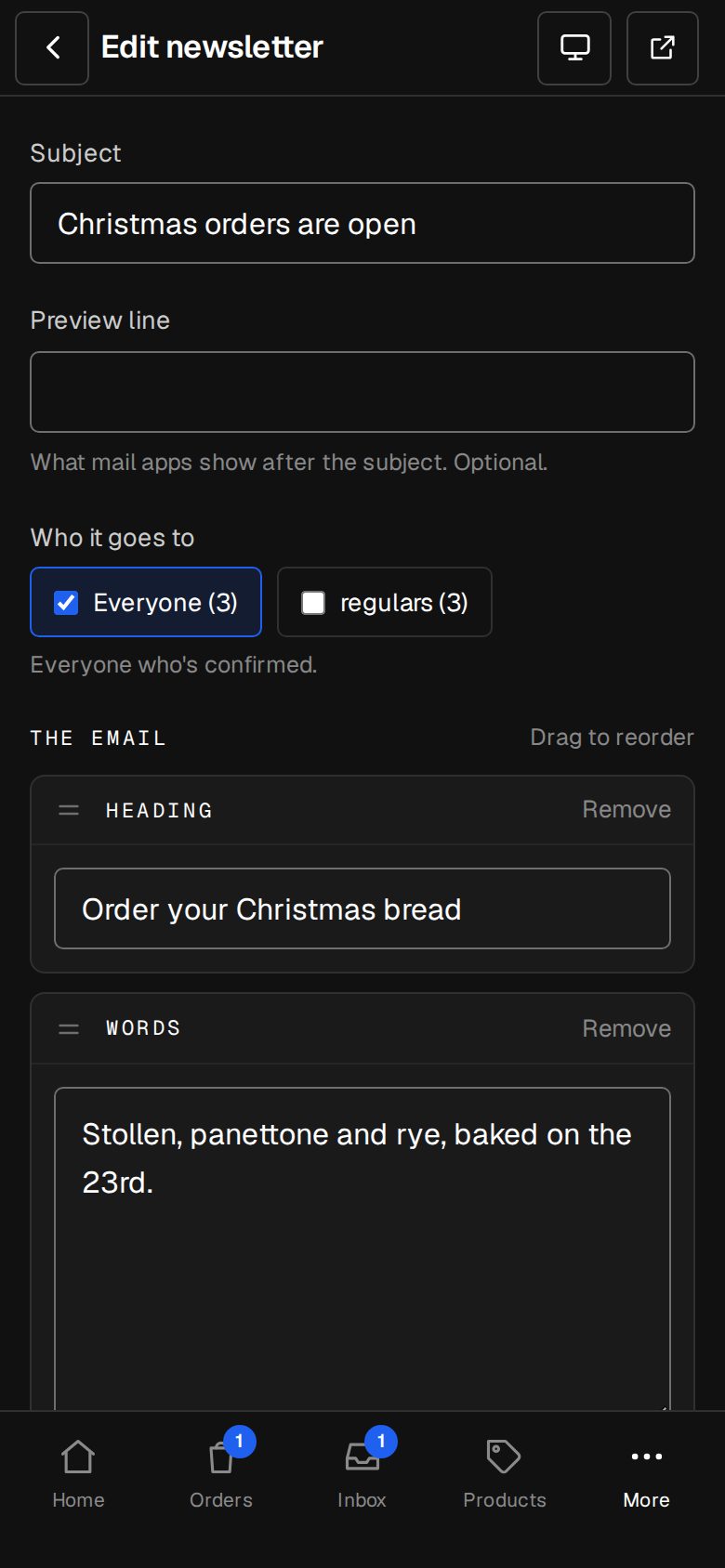
Type the Subject. Preview line is what mail apps show after it, and is optional.
Choose who it goes to
Under Who it goes to, leave Everyone ticked, or tick one or more tags to send to anyone with one of them. It shows about how many people that is.
Write it
Tap + Add a block: Heading, Words, Picture, Button, Products, Latest articles or Line. In Words, leave an empty line between paragraphs; **stars** make words bold. Drag a block's handle to reorder, or tap Remove.
See how it looks
How it looks shows the email beside your blocks on a computer, below them on a phone. Tap Send me a test to get it in your own inbox, marked [Test].
Send it now
Choose Now and tap Send to, followed by how many people.
Or schedule it
Choose At a time, pick the Day and time on your site's clock, and tap Schedule it. Don't send it then puts it back to a draft.
Good to know
- Everything saves as you go. Watch for ✓ Saved at the top.
- It needs a subject and something written before it can go.
- Products shows up to six, with their photo and today's price, and is offered once your shop has products. Latest articles shows one to six from your journal.
- A scheduled newsletter starts within about ten minutes of its time.
- Once it's gone out it can't be changed. Copy it to send again makes a new draft.
- It's sent from the name in Settings · Sending. For more than 20,000 people, ask us.
Was this helpful?