
Answer chats
Chats from your site's chat button arrive in Inbox, under Chats. While you have Chats open, visitors can chat with you live. When nobody's in, you're emailed and can answer later. Your answer is emailed to them if they've left.
Chat is an add-on an Owner adds on Settings · Plan.
2 minutesEveryone on the teamWorks on a phone
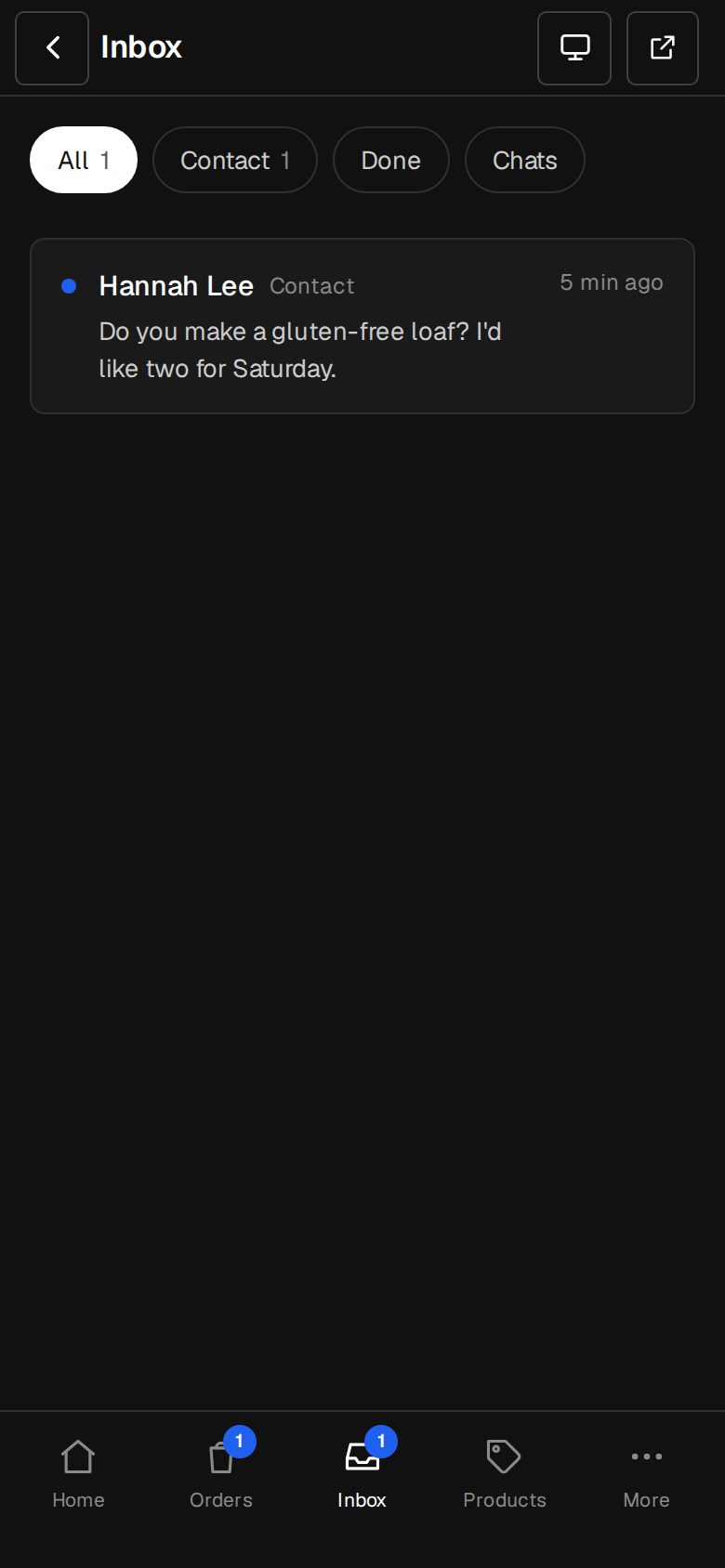
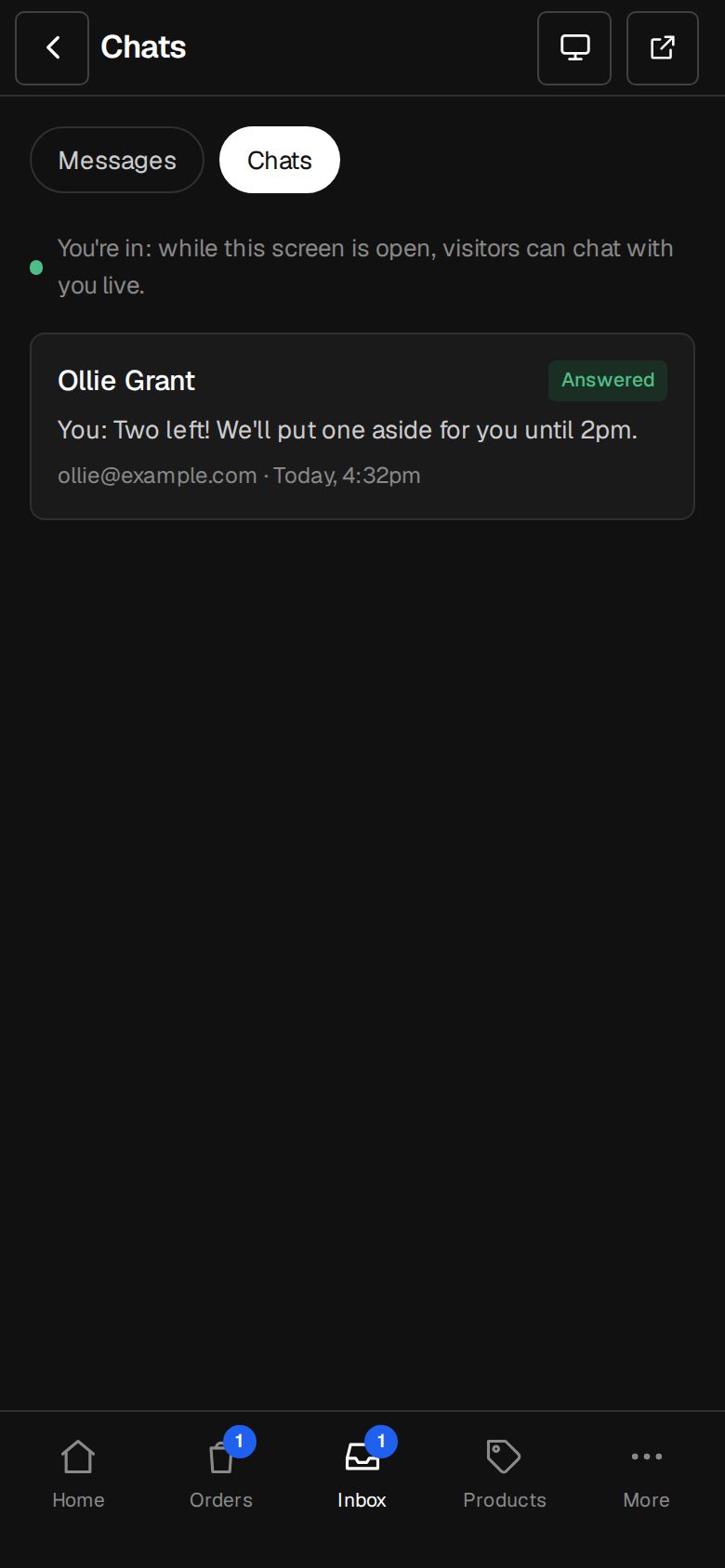
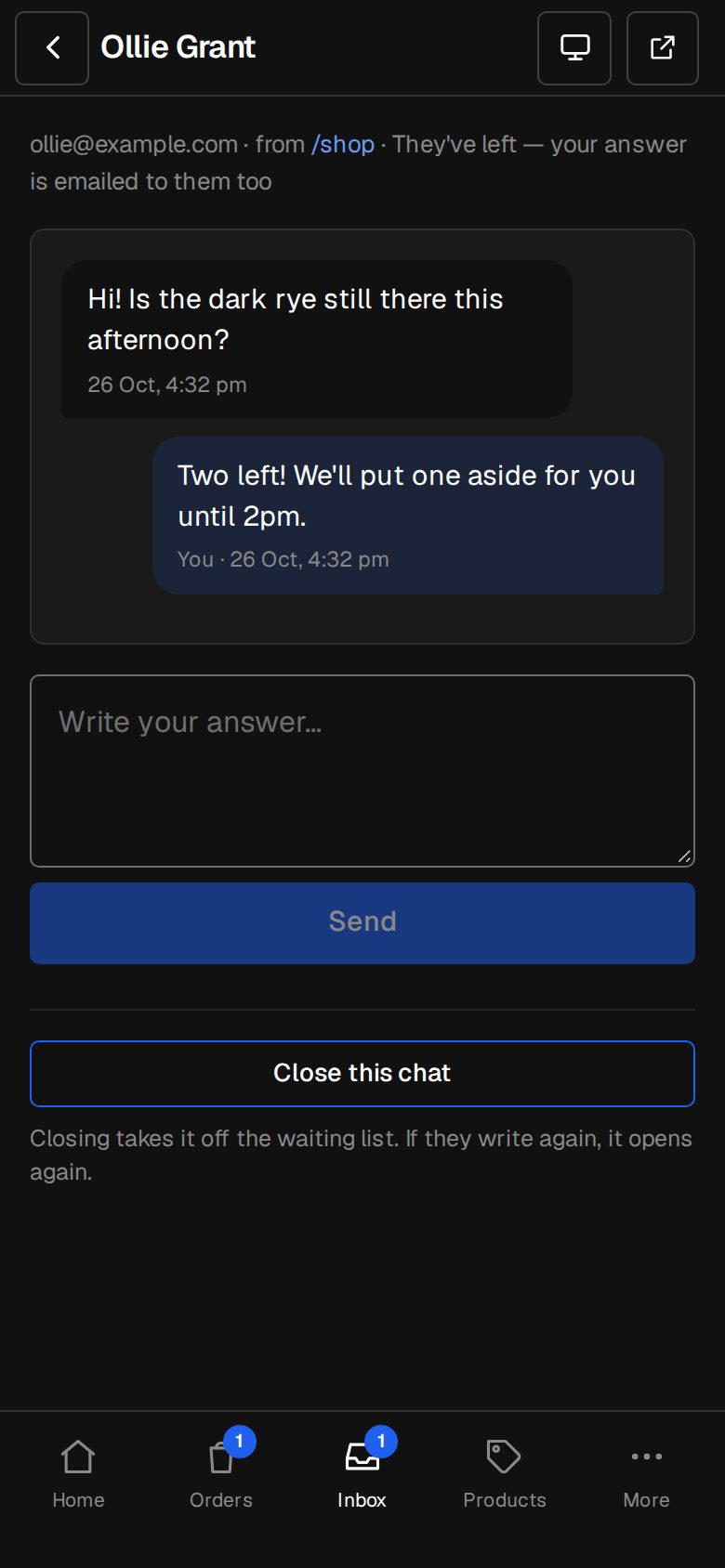
Open Inbox, then Chats
On a computer, choose Inbox in the sidebar. On a phone, tap Inbox in the bar at the bottom. Tap Chats along the top; its number is how many are waiting.
Stay in for live chat
While this screen is open you'll see You're in, and visitors see We're here. The list checks for new chats every ten seconds.
Open a chat
Each one shows Waiting, Answered or Closed, with the last message. Tap it to read the whole conversation, and which page they wrote from.
Write your answer
Type in Write your answer… and tap Send. On a computer, Ctrl or Cmd with Enter sends too. If it says They've left, your answer is emailed to them as well.
Close it when done
Tap Close this chat to take it off the waiting list. If they write again, it opens again. Open it again brings back a closed one.
Good to know
- Live means someone on the team had Chats open in the last two minutes. Turn this off with Live chat while someone's in on Settings · Chat.
- When nobody's in, the team is emailed at most once per chat every 15 minutes. The email links to the chat. Replying to the email answers the visitor by email, but that reply doesn't appear in the chat.
- Messages from the AI are marked AI, and yours You.
Was this helpful?