
Ready answers
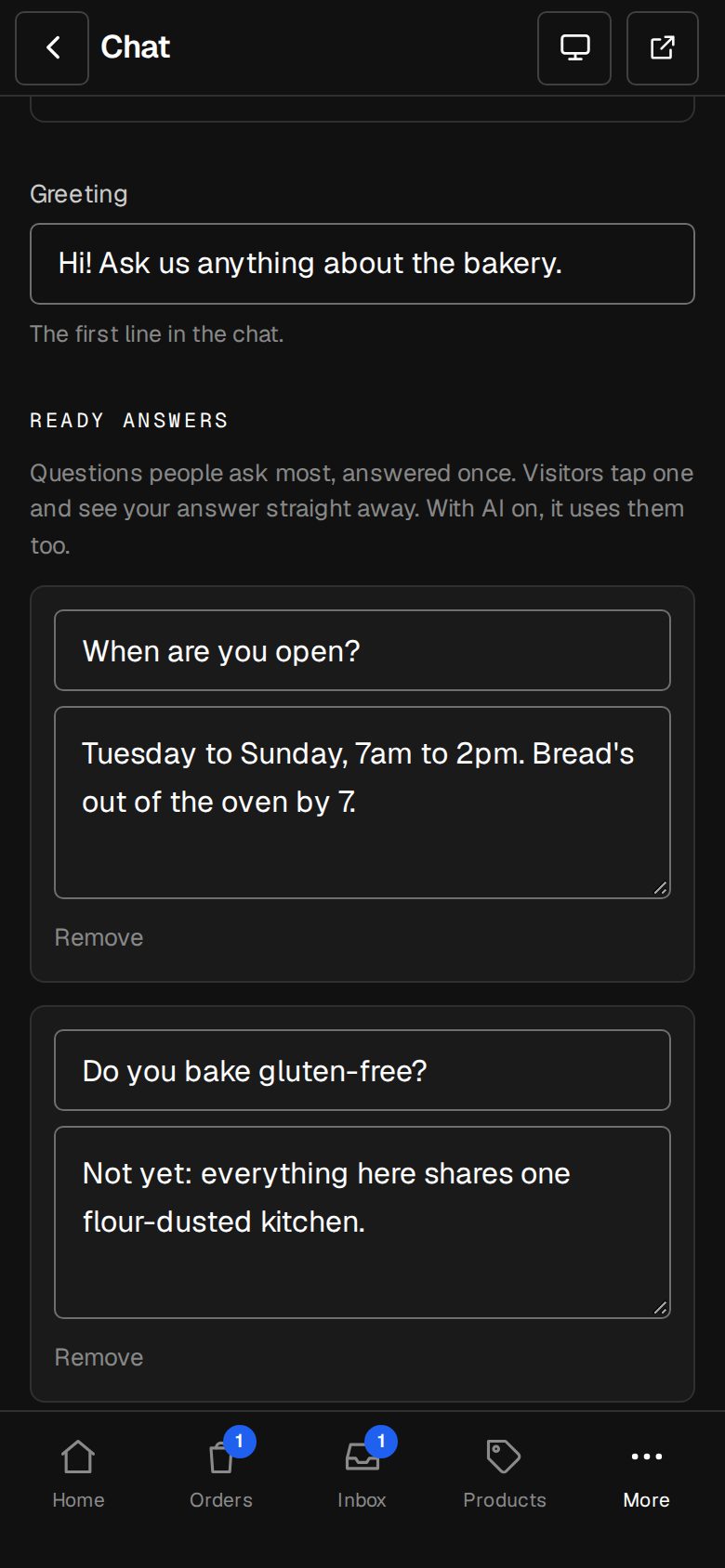
Ready answers are the questions people ask most, answered once. Visitors tap one in the chat and see your answer straight away, without waiting for anyone. With AI answers on, Claude uses them too.
Chat is an add-on an Owner adds on Settings · Plan.
2 minutesManagers and OwnersWorks on a phone
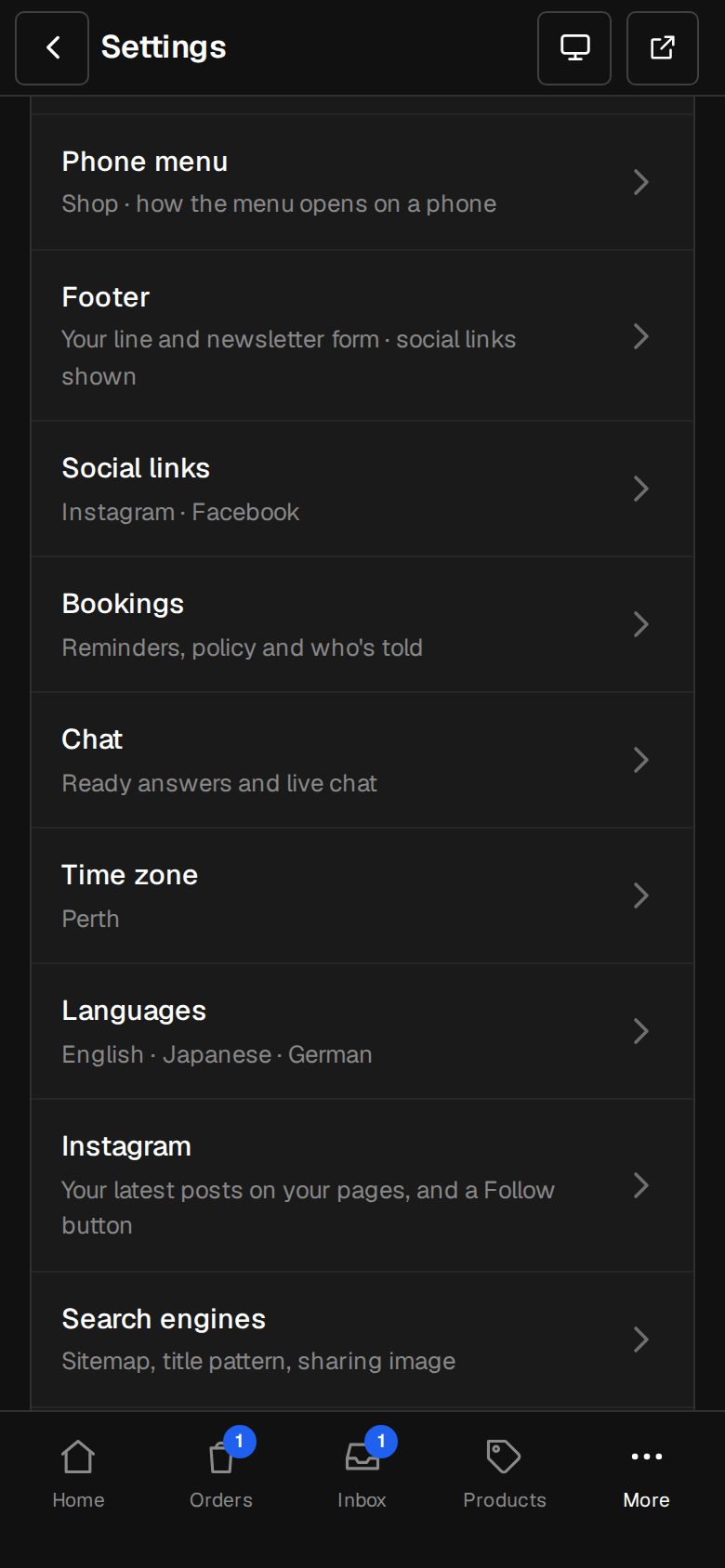
Open Settings, then Chat
On a computer, choose Settings in the sidebar. On a phone, tap More, then Settings. Chat is under Your site.
Pick a chat mode
Ready answers show with Ready answers and live chat, or AI answers, then the team. They're hidden with Ways to reach you.
Add one
Under Ready answers, tap + Add a ready answer. Type the question (up to 120 characters) and the answer (up to 1,000).
Add the rest
Repeat for each common question, up to 20. Tap Remove under any you no longer want.
Save
Tap Save at the bottom. Your site shows them the next time a visitor opens the chat.
Good to know
- Visitors see your answers as a list to tap. Once tapped, an answer leaves the list.
- After the answers, Have more questions? Email us opens the message form. While someone on the team has Chats open, it says Message us instead.
- Write answers that stand on their own: delivery areas, opening hours, how long things take.
Was this helpful?