
Help/Deals & customers/Companies
Companies
Put people together under the business they work for: a reseller, a hotel group, a builder. A company's page shows its people, their deals and what they've spent added up.
Deleting a company needs an Owner or Manager. Deals, Tasks, tags and Companies come with the CRM add-on. If you can't see them, an Owner can add it under Settings · Plan, in Add to your plan.
2 minutesEveryone on the teamWorks on a phone
Open Companies
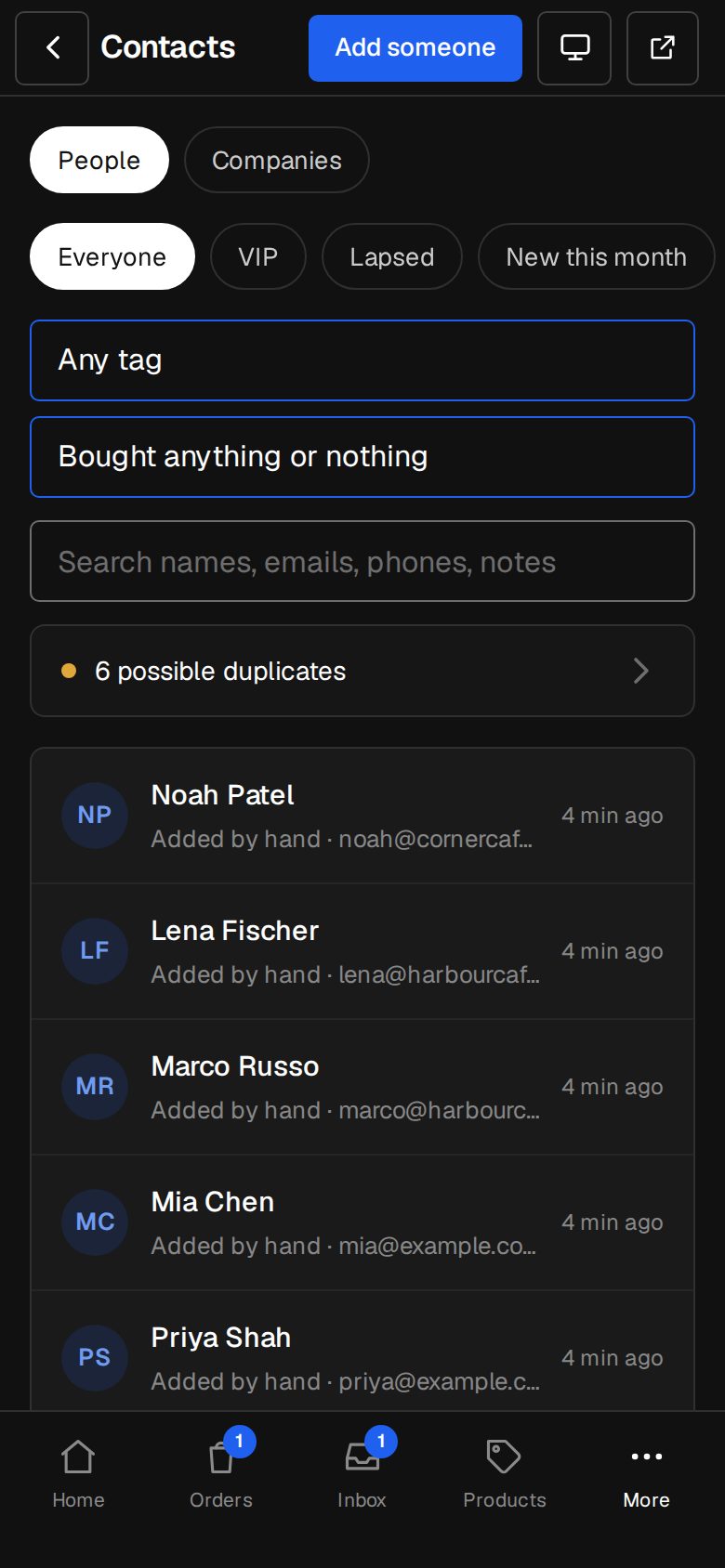
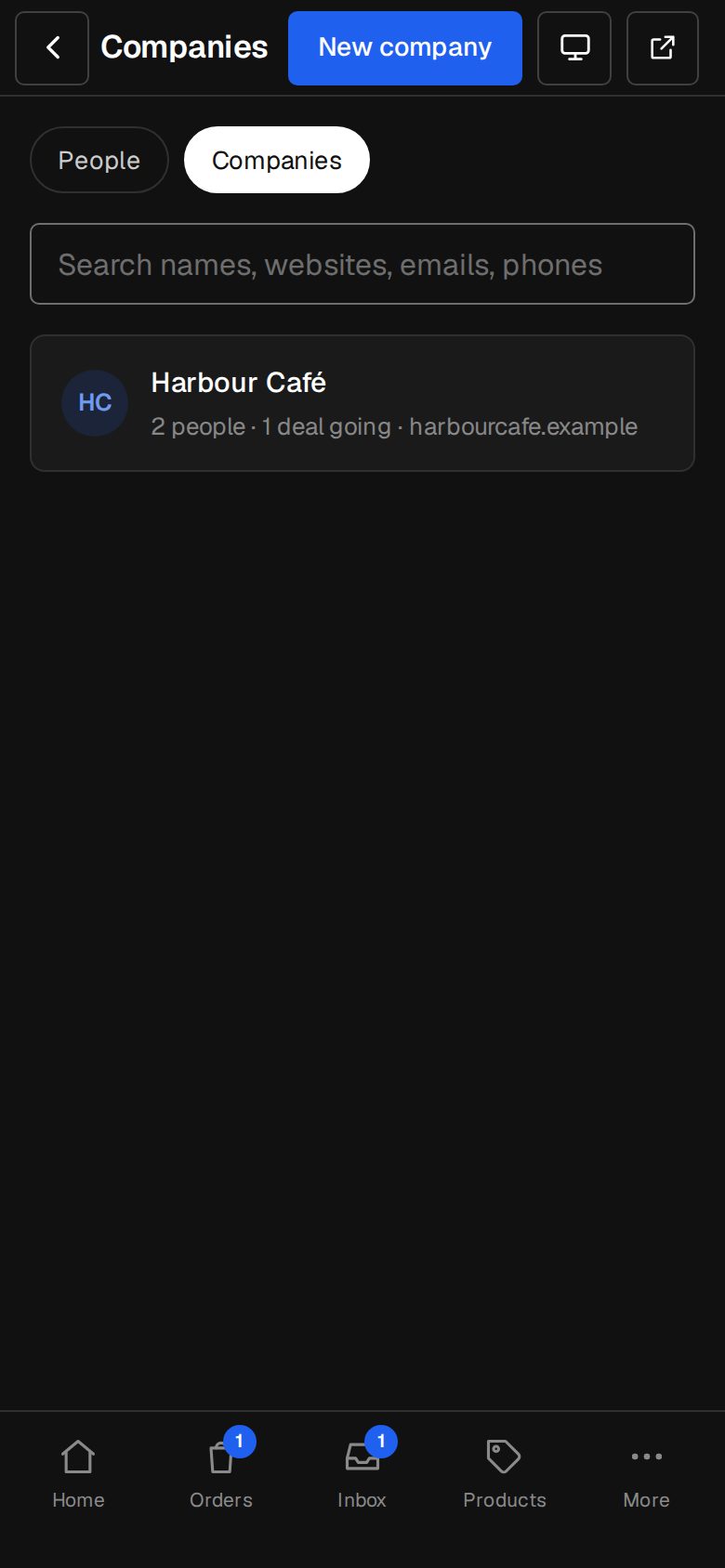
Open Contacts (on a phone, tap More, then Contacts) and tap Companies at the top, beside People.
Add a company
Tap New company. Fill in Company name, and any of Website, Email, Phone, Business number (ABN, VAT or tax ID), Address and Notes. Tap Add the company.
Put people with it
Open a contact. Under Company, pick it from the list, and it saves straight away. To start one from there, pick + A new company…, type the name and tap Add.
See it all together
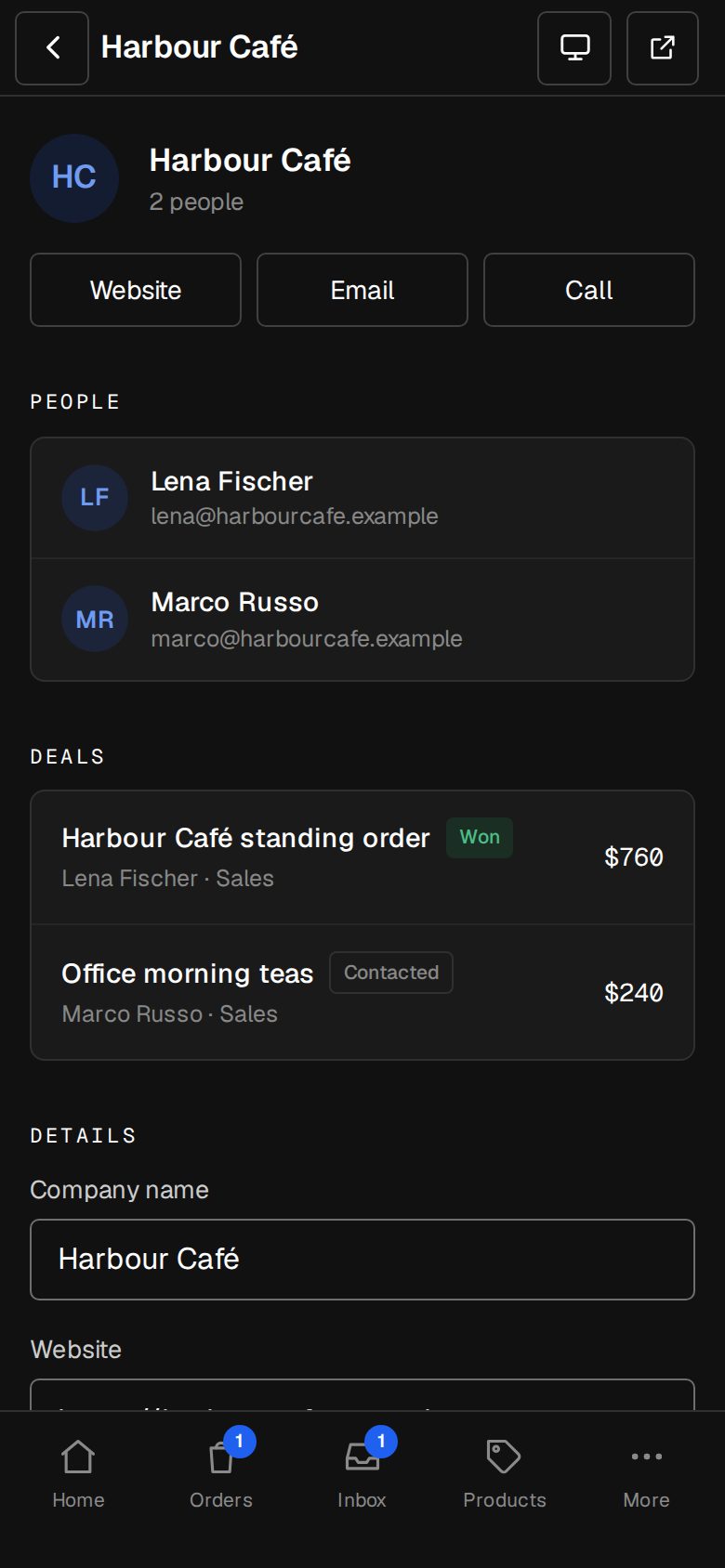
Open the company. You'll see what its people have spent, Website, Email and Call buttons, its People and their Deals.
Change the details
Under Details on the company's page, make your changes and tap Save the company.
Take someone off
On their contact page, pick No company under Company.
Good to know
- Each person can be with one company.
- Typing a new company name that matches one you already have puts them with that one.
- A company's deals are its people's deals, and a deal's page links to its contact's company.
- Delete this company removes the company only. Its people stay in your contacts, with no company.
- Search on Companies covers names, websites, emails and phone numbers.
Was this helpful?