
Help/Deals & customers/Tags, groups and saved lists
Tags, groups and saved lists
With the CRM add-on, Contacts gets tags you type, smart groups worked out from what people have bought, and lists you save. Groups are worked out fresh each time you open them, so a list is never out of date.
Owners and Managers delete lists, export them and invite them to the newsletter. Deals, Tasks, tags and Companies come with the CRM add-on. If you can't see them, an Owner can add it under Settings · Plan, in Add to your plan.
2 minutesEveryone on the team tags people and saves listsWorks on a phone
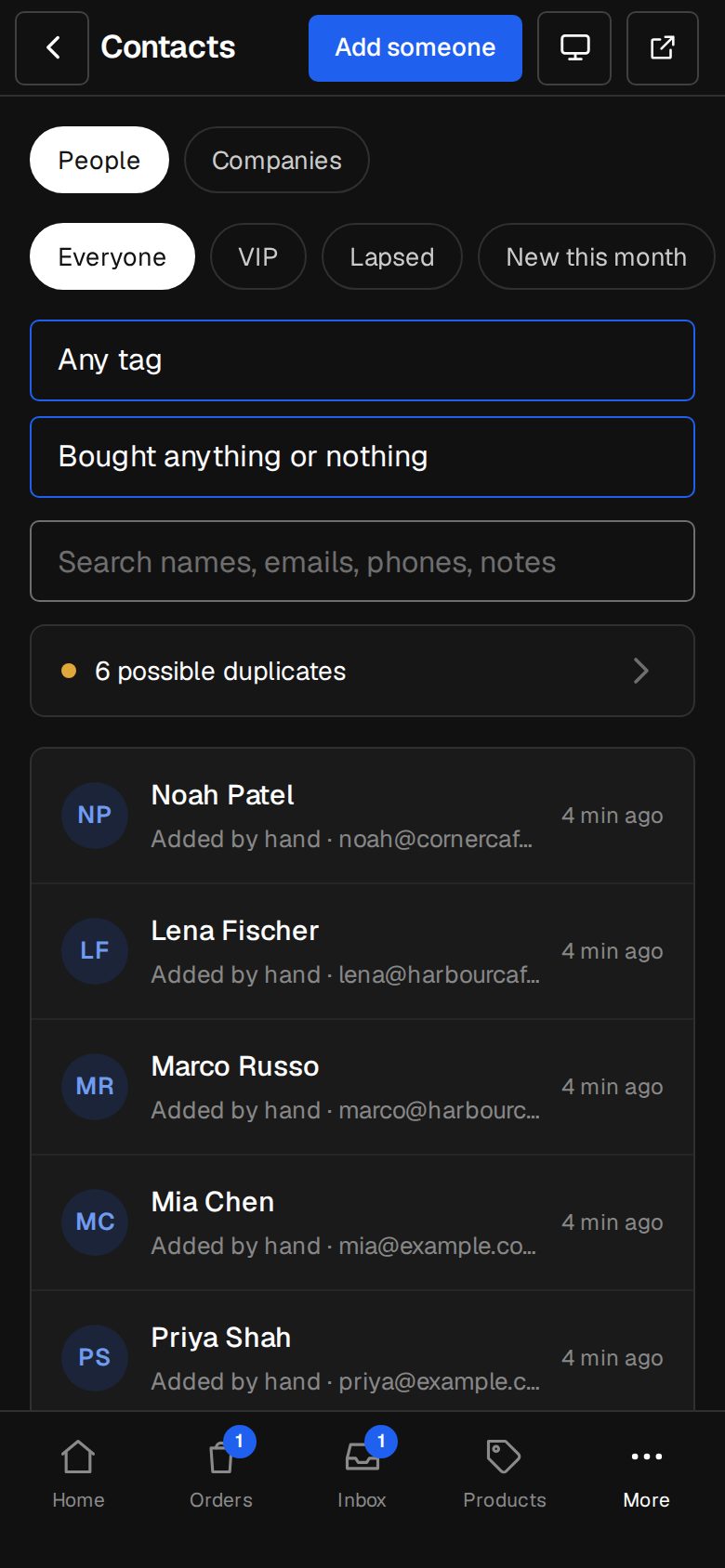
Open Contacts
On a computer, choose Contacts in the sidebar. On a phone, tap More, then Contacts.
Tag someone
Open a contact. Under Tags, type one (Reseller, Spa, Hua Hin) and tap Add tag. Tap ✕ on a tag to take it off, or tap the tag to see everyone with it.
Use the groups
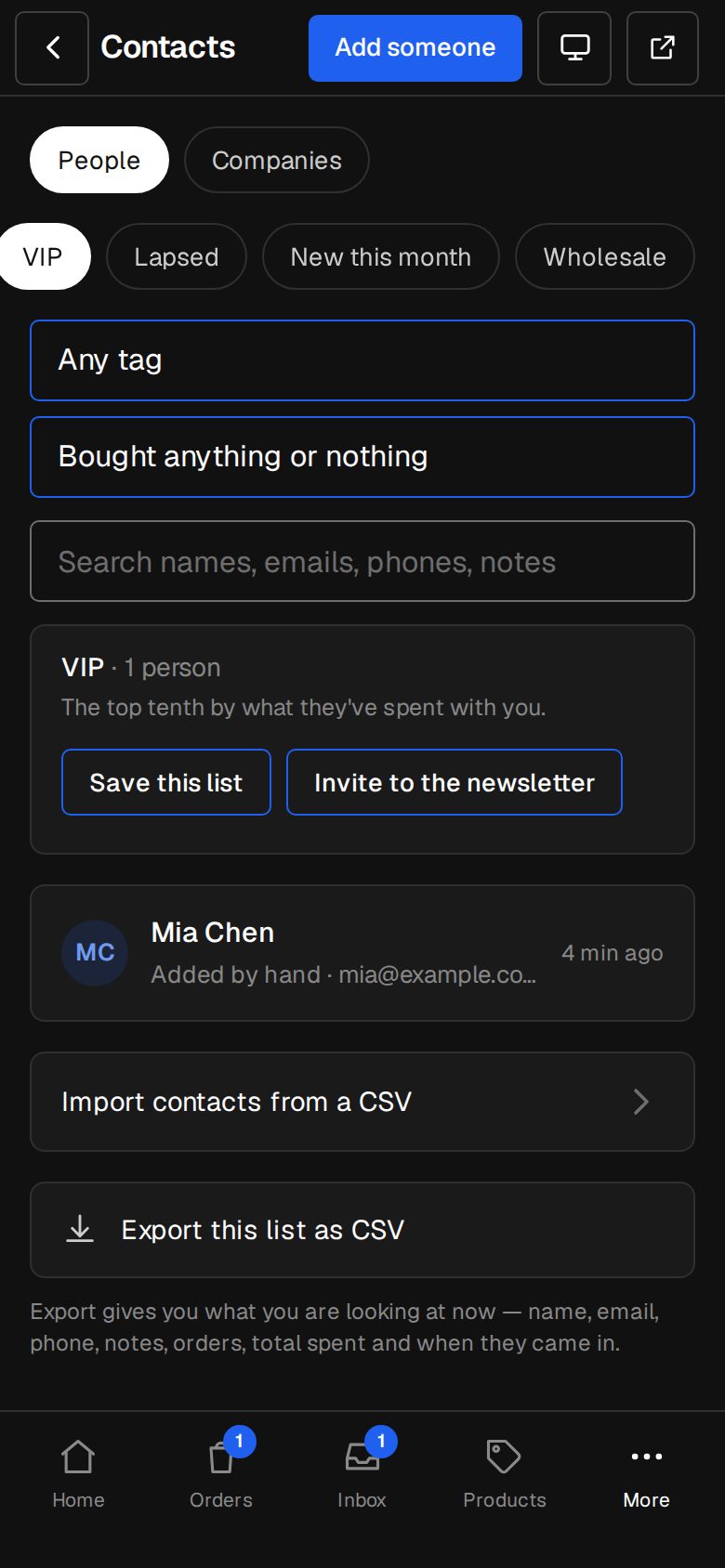
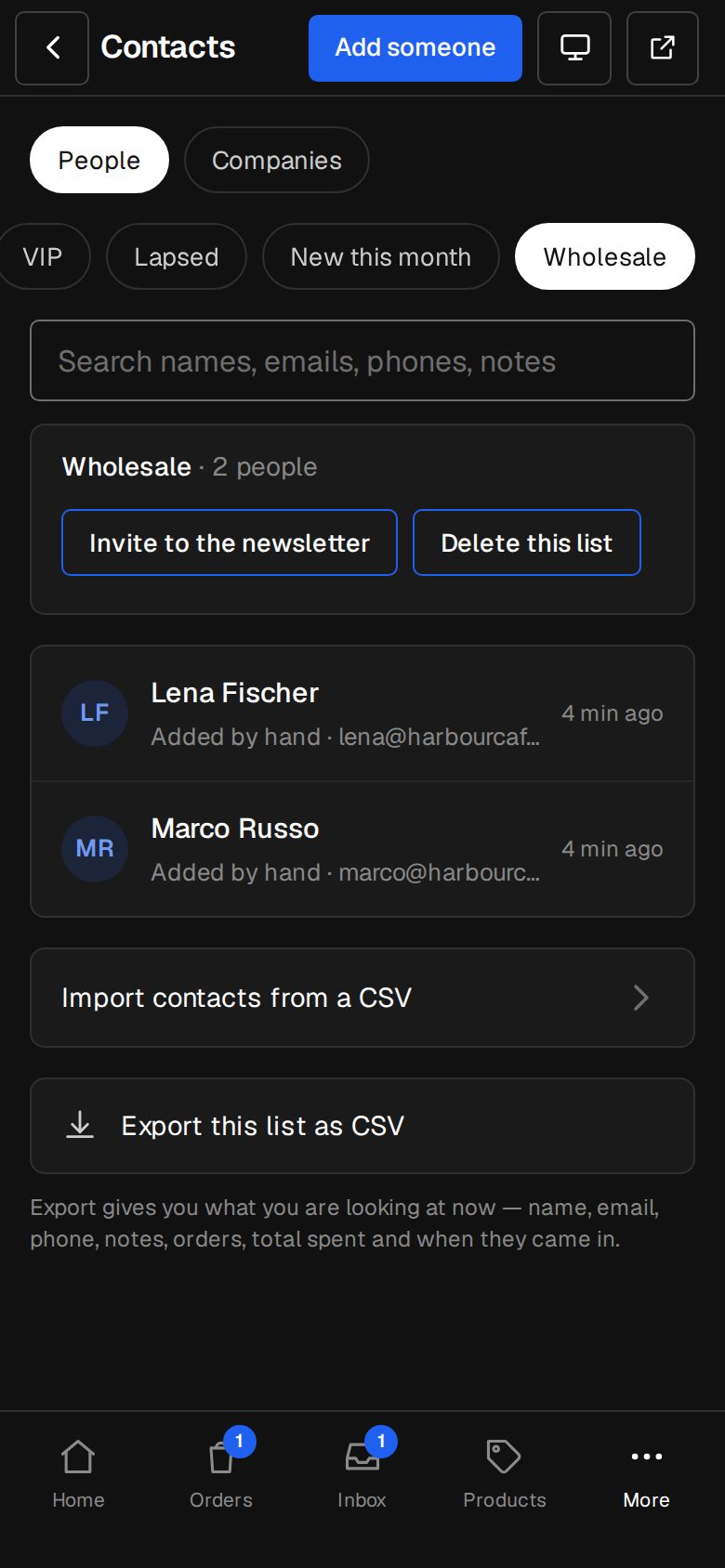
Along the top: Everyone, VIP, Lapsed, New this month, then your saved lists.
Narrow it down
Pick Tagged… to show one tag, and Bought… to show people who bought a product. They work with each other, with a group and with search.
Save this list
When you've narrowed it, tap Save this list, keep or change the name, and tap Save. It joins the chips along the top.
Invite them to the newsletter
With the Newsletters add-on, an Owner or Manager can tap Invite to the newsletter. Each person with an email is sent a link to confirm, and tagged with the list's name. 500 at a time.
Export it
Owners and Managers can tap Export this list as CSV under the list.
Good to know
- VIP is the top tenth by what they've spent. Lapsed bought before but nothing in the last six months. New this month came in during the last 30 days.
- Spending comes from paid orders, matched by the contact or the same email. Without the Shop, VIP and Lapsed stay empty.
- A tag is up to 30 characters, 20 tags a person. The same tag in different capitals is kept once.
- Delete this list removes only the list. Everyone in it stays in your contacts.
Was this helpful?