
Help/Pages/Add a help centre to your site
Add a help centre to your site
A Help centre gives your site guides in chapters at /help, with a search box, like the one you're reading. Each guide is an ordinary page, so you write it with the same sections as the rest of your site.
The Help centre is an add-on. An Owner adds it on Settings · Plan, under Add to your plan.
2 minutesOwners and ManagersWorks on a phone
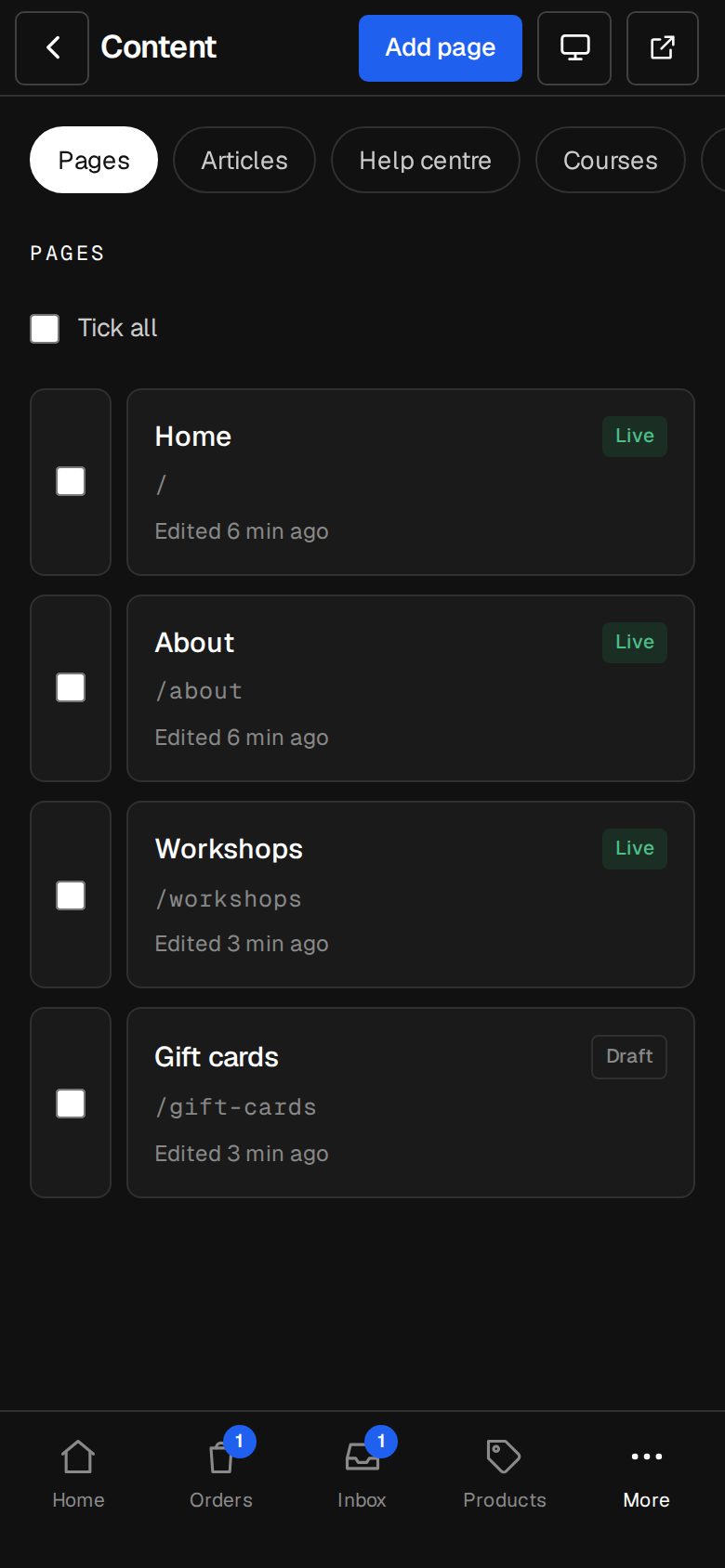
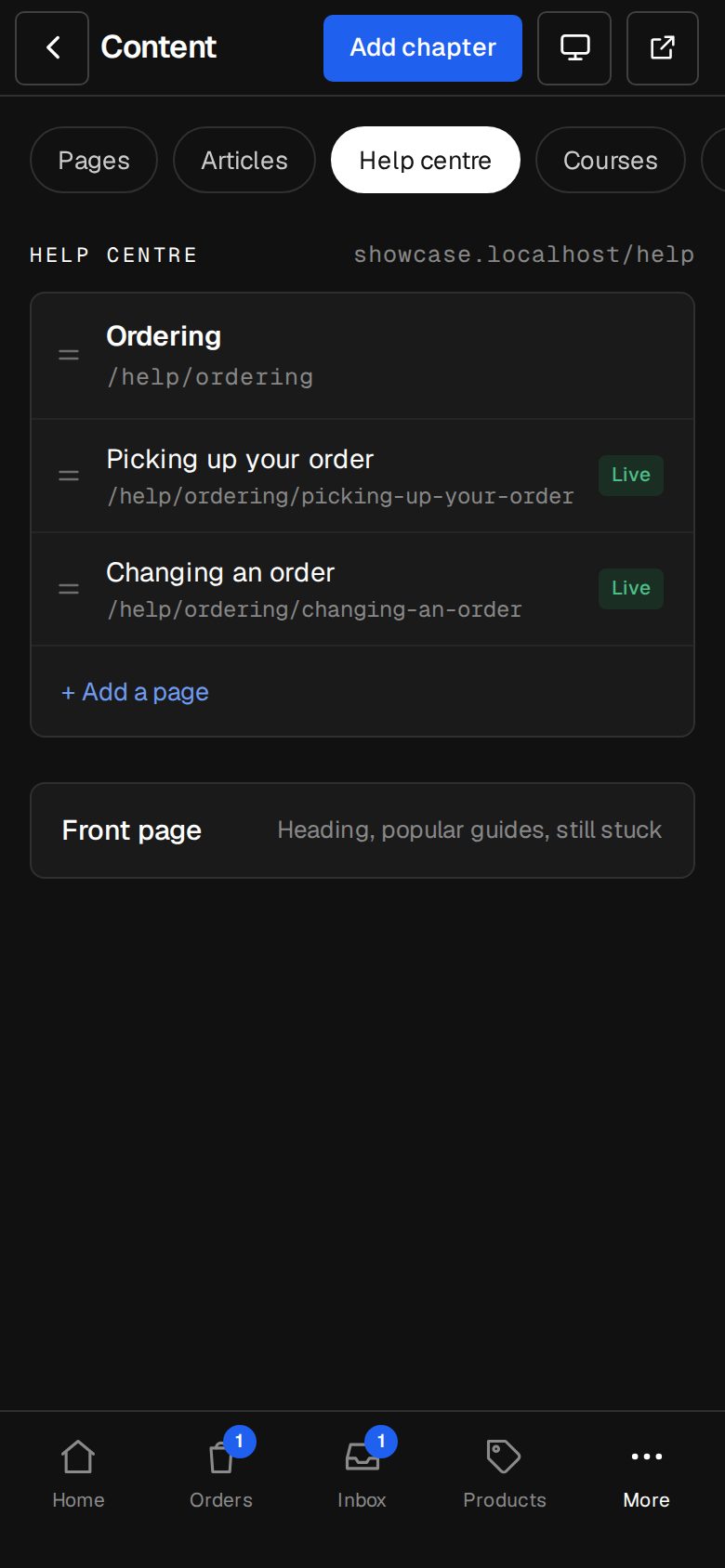
Open Content, then Help centre
On a computer, choose Content in the sidebar, then the Help centre tab. On a phone, tap More, then Content, then Help centre.
Add a chapter
Tap Add chapter. Give it a Title like Getting started, check the Address it suggests, add a line in About this chapter if you like, and pick Its number's colour. Tap Add chapter.
Add a guide
In the chapter, tap + Add a page, type its title and tap Add. The page editor opens.
Write it
Add sections as on any page. Near the top, set its Chapter, and Who can do it if you'd like a line such as Owners and Managers under the title, beside its reading time.
Keep it for customers, if you need to
Under Who can read it, choose Signed-in customers. Others see the title and a prompt to sign in, and search engines leave it out. Customer accounts switch on for it.
Publish it
A guide is a Draft until you publish it, like any page. In the Help centre list it then shows Live.
Put things in order
Drag chapters, or guides inside a chapter, by their handle.
Set up the front page
Open Front page under the chapters: the Heading, a line under it, the Hint in the search box, up to four Popular guides, the Still stuck words, and an optional Button on guides. Tap Save front page.
Good to know
- Link to it from a menu: in Content, then Menus, tap Add item and choose The Help centre.
- Guides stay out of Pages and your menus, and live at /help/chapter/guide.
- Readers can answer Was this helpful? Each guide shows the count, like 3 helped · 1 didn't.
- Changing a chapter's Address moves its guides, and old links are redirected.
- A chapter can only be deleted once it's empty: tap it, then Delete chapter.
Was this helpful?