
Help/Bookings/See, move and book someone in
See, move and book someone in
Bookings shows what's coming up, day by day, two weeks at a time. From here the team takes bookings by phone or at the desk, moves and cancels them, and marks how they went.
Setting up what can be booked needs an Owner or Manager. Bookings is an add-on: if you can't see it, an Owner can add it under Settings · Plan, in Add to your plan.
2 minutesEveryone on the team, Staff includedWorks on a phone
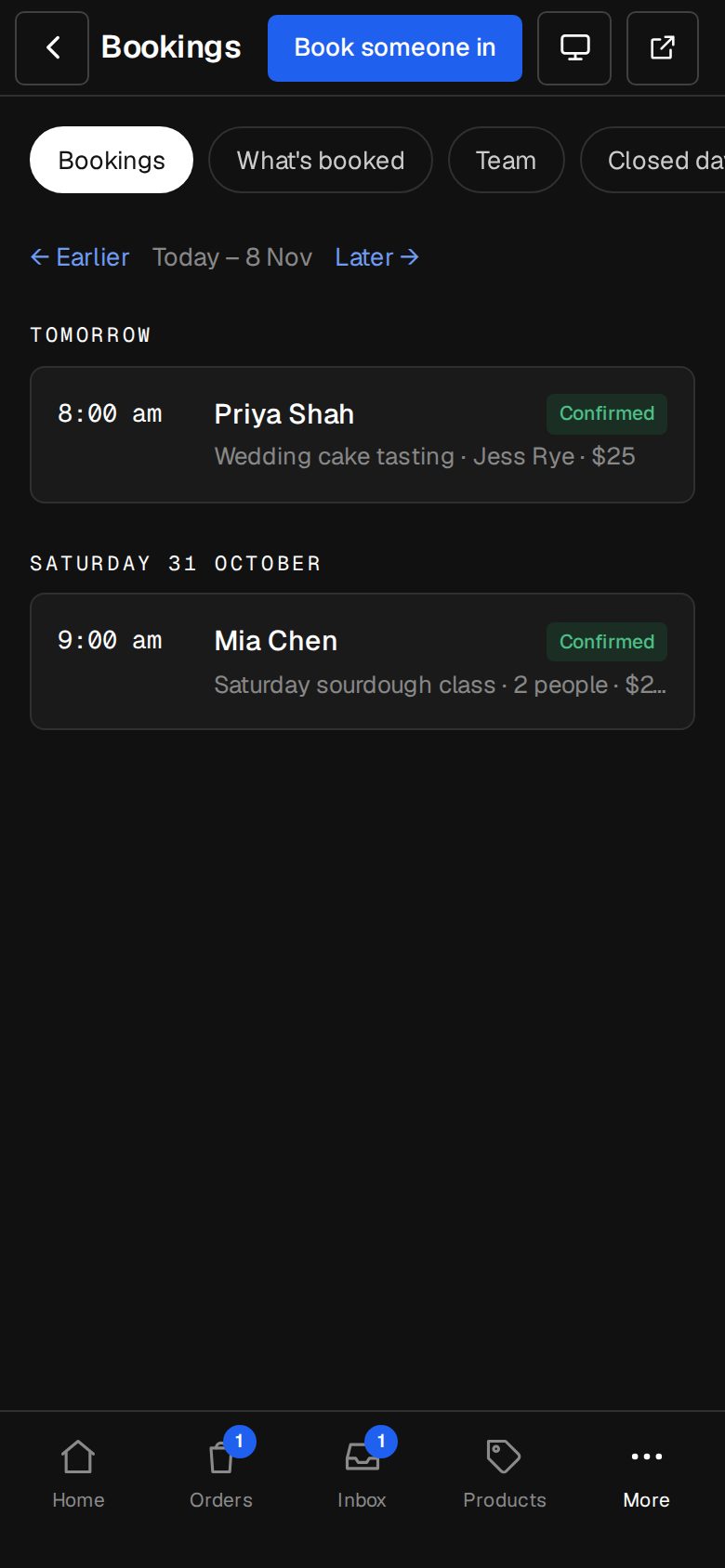
Open Bookings
On a computer, choose Bookings in the sidebar. On a phone, tap More, then Bookings.
Find a booking
Use Earlier, Later and Today to move through the weeks. With more than one person on the bookings team, tap a name to see only theirs, or Everyone. Each booking shows Confirmed, Waiting, Paying, Done or No-show.
Open it
Tap a booking to see what, when, how many, their email and phone, the price, their note, and whether it was booked online or by the team.
Book someone in
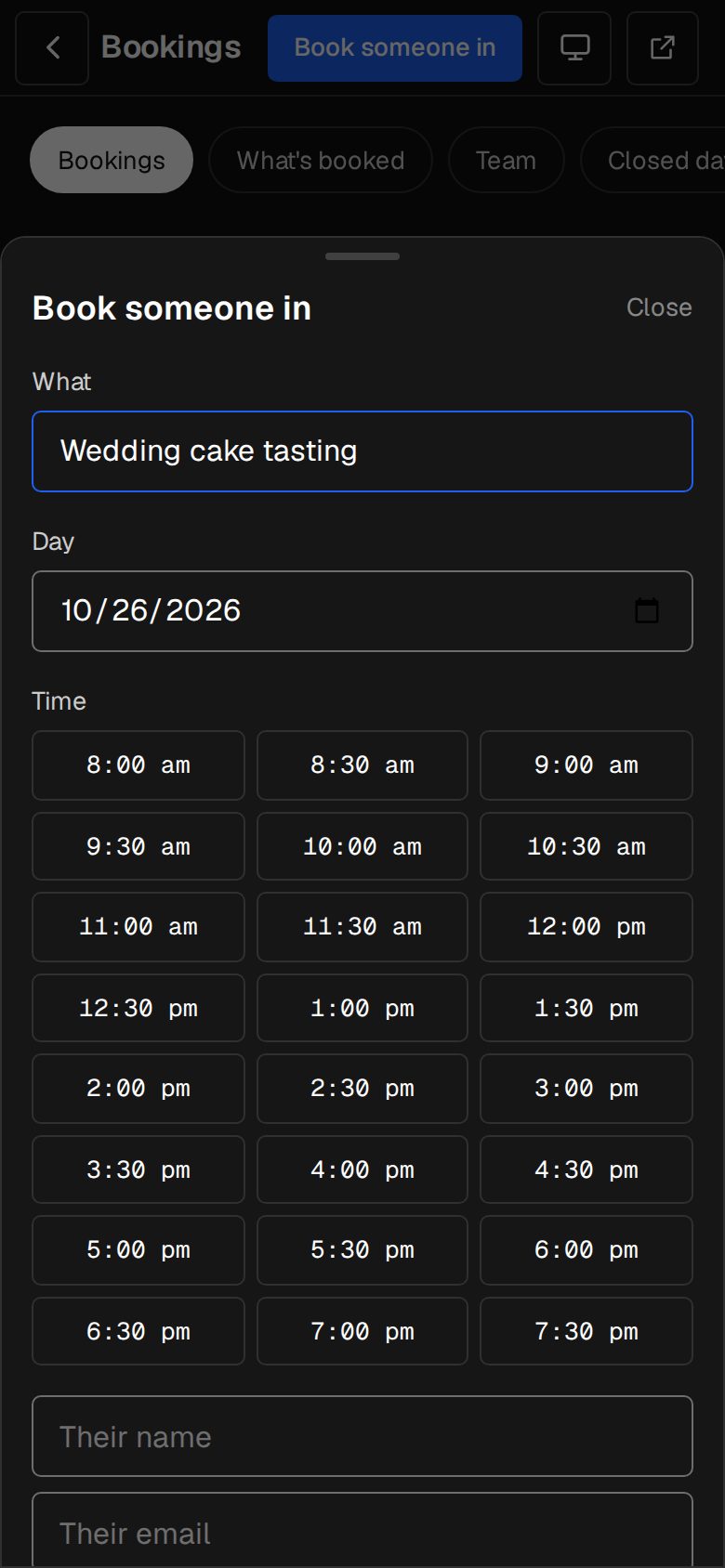
Tap Book someone in at the top. Pick What, the Day and a Time (or Arriving and Nights for a stay), With for an appointment if you like, and How many. Add their name and email, plus phone, address or notes, then tap Book it.
Move it
On the booking, tap Move it, pick a new day and time, then Move it here. They're emailed the new time. Stays can't be moved this way.
Cancel it
Tap Cancel it and confirm. They're emailed that it's cancelled.
Say how it went
Once the time has passed, tap Mark done or They didn't come.
Keep a team note
Type in Team note and tap Save note. Only the team sees it.
Good to know
- A booking you make with Book someone in is confirmed straight away, never asks for payment, and the customer is emailed.
- Cancelling doesn't refund anything they paid. Refund in your Stripe.
- Customers can move or cancel their own booking from the link in their email, up to the Change until hours you set. When they cancel, Activity says so, with what they'd paid.
Was this helpful?