
Help/Bookings/Deposits, payments and confirming each booking
Deposits, payments and confirming each booking
Each thing you take bookings for has its own price, what's paid when booking, and whether you approve each booking first. These are set on each one, under Bookings, What's booked, rather than in Settings. Settings · Bookings holds the words and emails around them.
Anyone on the team can approve a booking. Bookings is an add-on: if you can't see it, an Owner can add it under Settings · Plan, in Add to your plan. Payments go through your own Stripe, which an Owner connects on Settings · Payments.
2 minutesOwners and Managers set prices and depositsWorks on a phone
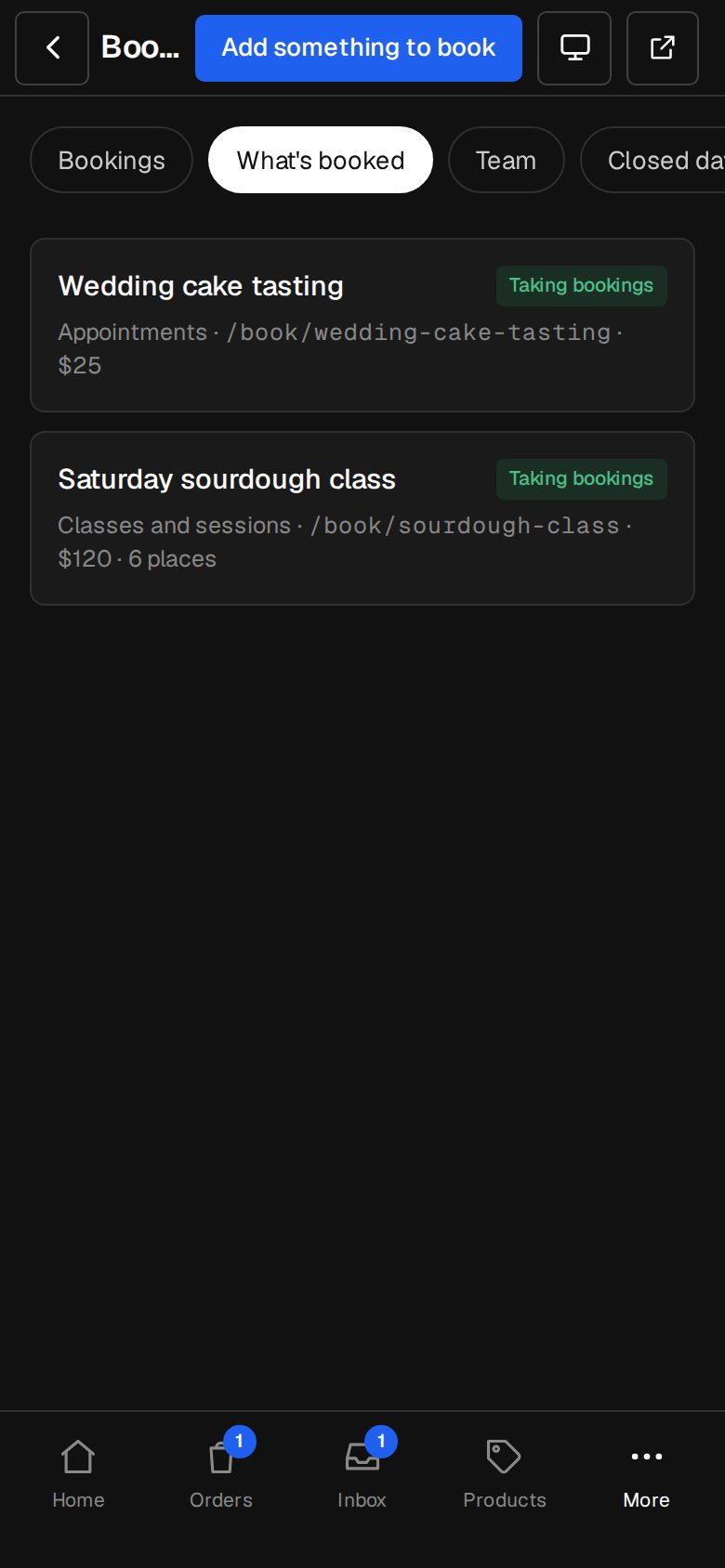
Open what's booked
Open Bookings (on a phone, tap More, then Bookings), tap What's booked, then the one to change.
Set the price
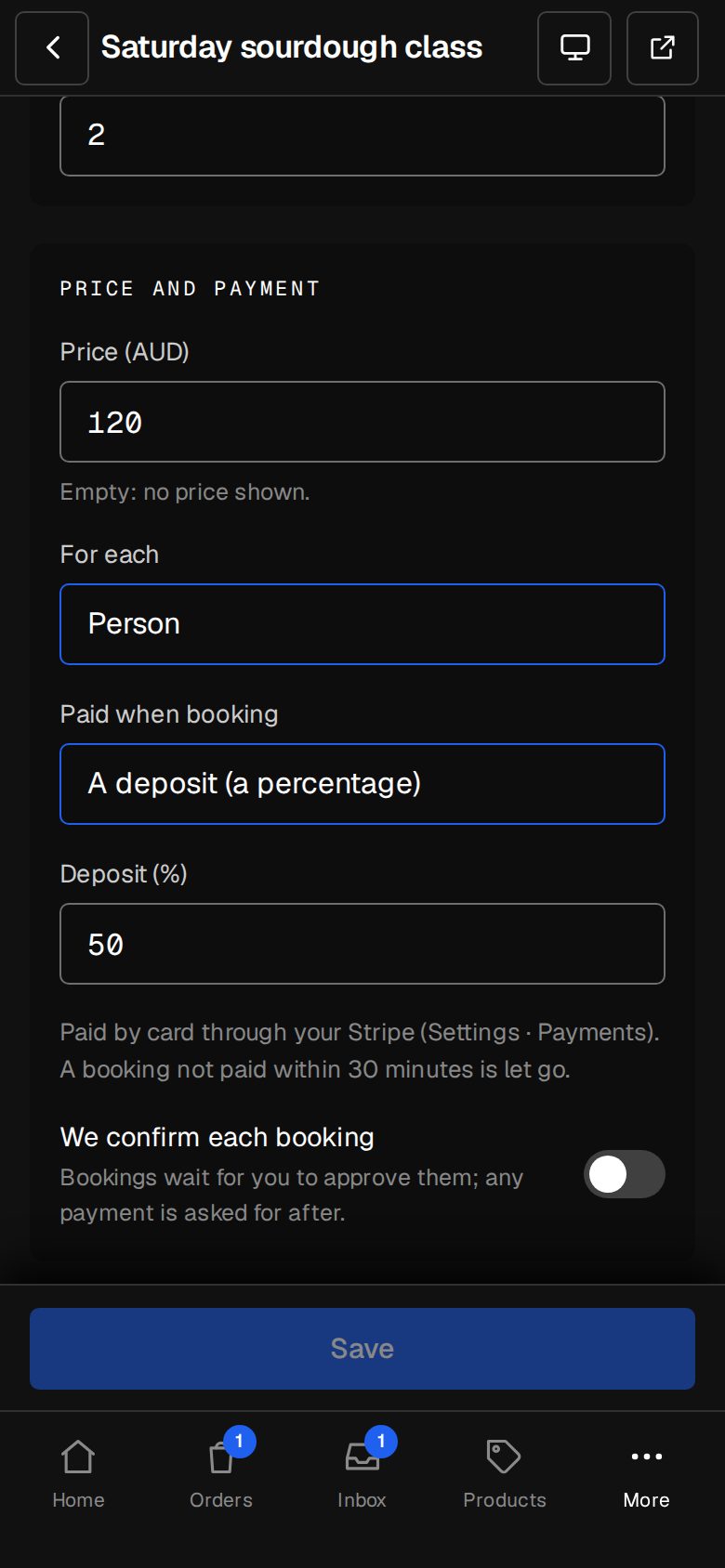
Under Price and payment, type the Price. Leave it empty to show no price. For each says what it's per: Booking or Person, plus Unit for rooms and stays, and Night for stays.
Choose what's paid when booking
Paid when booking can be Nothing — they pay on the day, The whole price, A deposit (an amount) or A deposit (a percentage). Fill in the Deposit box that appears.
Approve bookings yourself, if you like
Turn on We confirm each booking. Bookings then wait for you, and any payment is asked for after you approve.
Save
Tap Save at the bottom.
Approve what's waiting
On Bookings, Waiting for you to confirm sits at the top. Open one and tap Approve it. With nothing to pay, it's confirmed and they're emailed. With something to pay, they're emailed a link to pay within a day to hold it.
Good to know
- Online, a customer pays by card as they book. A booking not paid within 30 minutes is let go and the time opens again.
- If card payments aren't set up, anything that asks for payment can't be booked online. Customers are told to get in touch.
- Cancelling a booking doesn't refund it. Refunds are done in your Stripe.
- Settings · Bookings, under Your site, holds Heading on /book, Before they book (shown on /book and in every confirmation), the reminders and Tell about new bookings.
Was this helpful?