
Help/Bookings/Connect your Google Calendar
Connect your Google Calendar
Each person who takes appointments can connect their own Google Calendar. Times they're busy there aren't offered for booking, and each confirmed booking with them is added to their calendar, then taken out if it's cancelled. Each person connects separately.
Google Calendar works for appointments, with the people on your bookings team. Bookings is an add-on: if you can't see it, an Owner can add it under Settings · Plan, in Add to your plan.
2 minutesOwners and Managers, on Bookings, TeamWorks on a phone
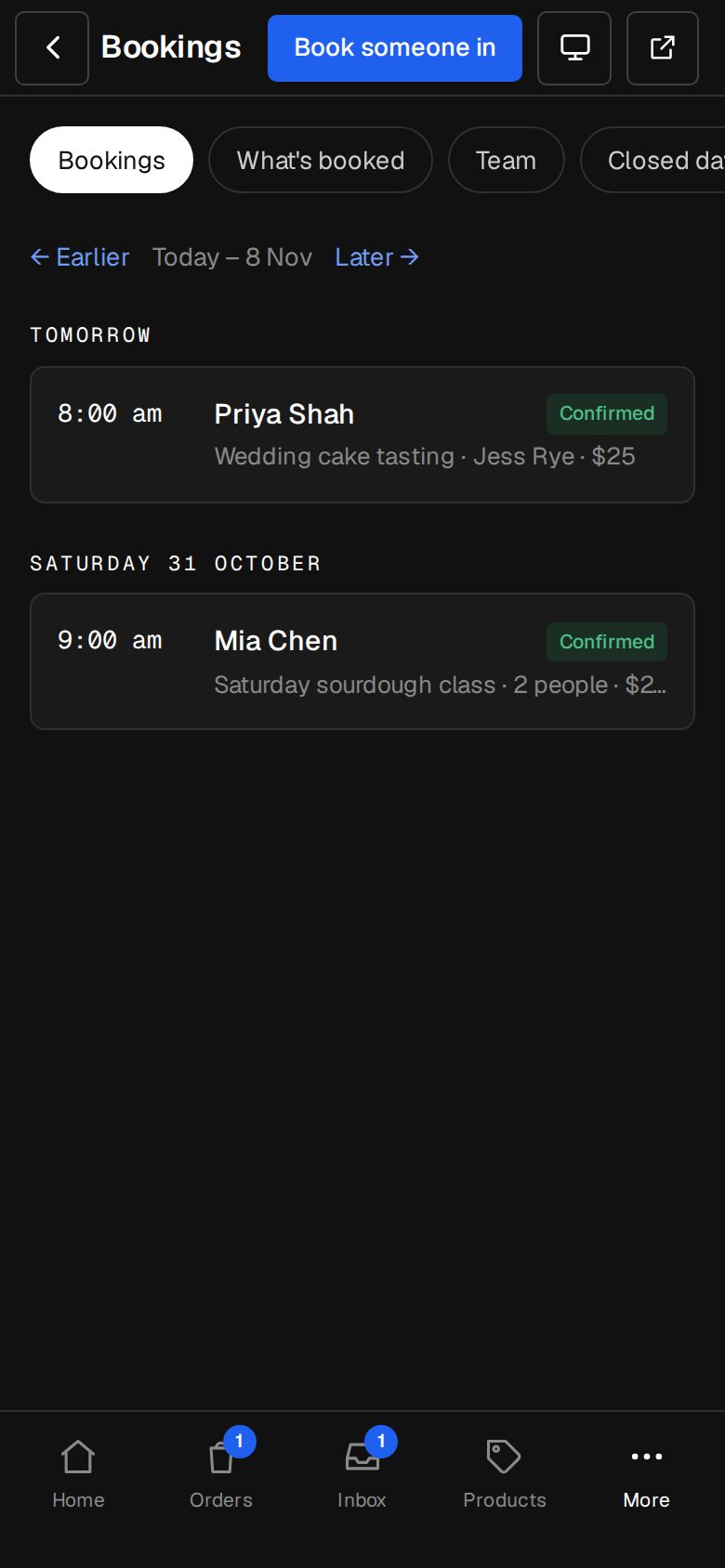
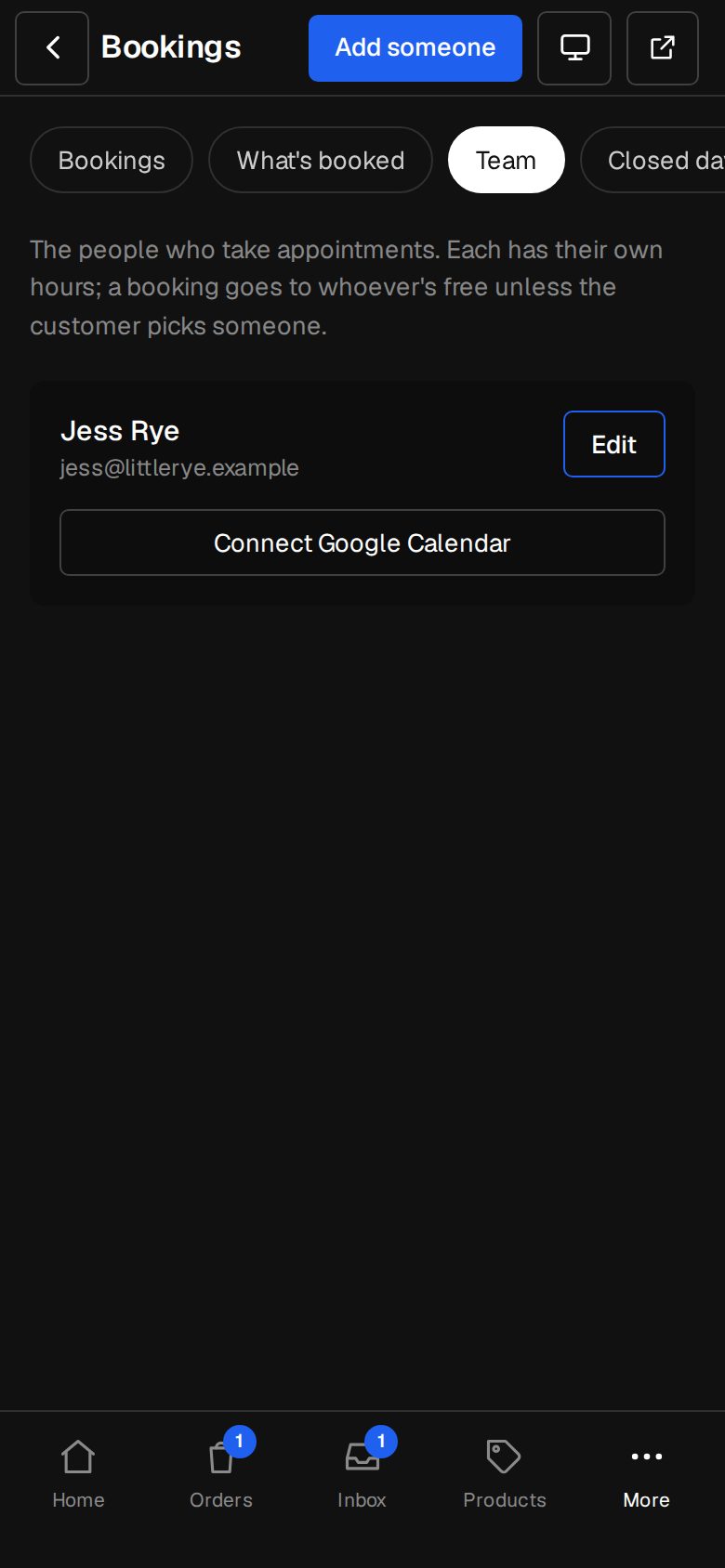
Open the bookings team
Open Bookings (on a phone, tap More, then Bookings) and tap Team at the top.
Find the person
Each person has a card with their name and email. If they're not there yet, tap Add someone.
Tap Connect Google Calendar
Google opens. Sign in with that person's own Google account, not yours, and allow access. If it's their calendar, it's easiest on their phone or computer.
Check it's connected
Back in o/i you'll see Google Calendar connected, and their card shows Google Calendar with their Google address.
Disconnect
To stop, tap Disconnect on their card. Busy times stop blocking bookings, and new ones aren't added.
Good to know
- Only their main calendar is used: o/i reads when they're busy, and adds and removes its own bookings. It doesn't read what their other events are.
- Bookings made before connecting aren't added.
- Moving a booking moves its event in Google too, to whoever now takes it.
- If Google can't be reached for a moment, their times are offered as if their calendar were free.
- If the card says Google Calendar isn't set up for the platform yet, ask us through Get help.
Was this helpful?