
Help/Bookings/Closed days and reminders
Closed days and reminders
Close days for holidays, closures or someone's time off, and nothing can be booked then. Reminders go to customers by email before their booking, so fewer people forget.
Bookings is an add-on: if you can't see it, an Owner can add it under Settings · Plan, in Add to your plan.
2 minutesOwners and ManagersWorks on a phone
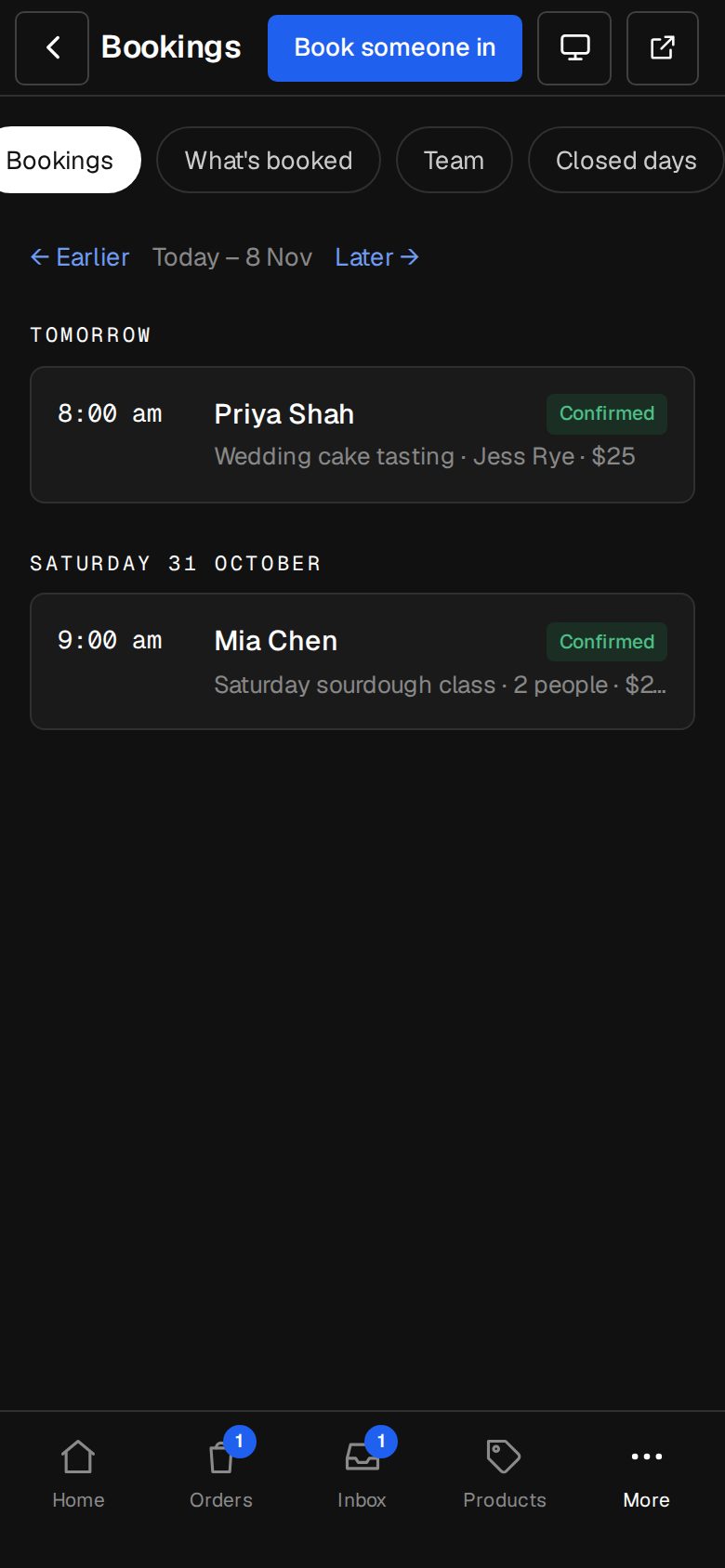
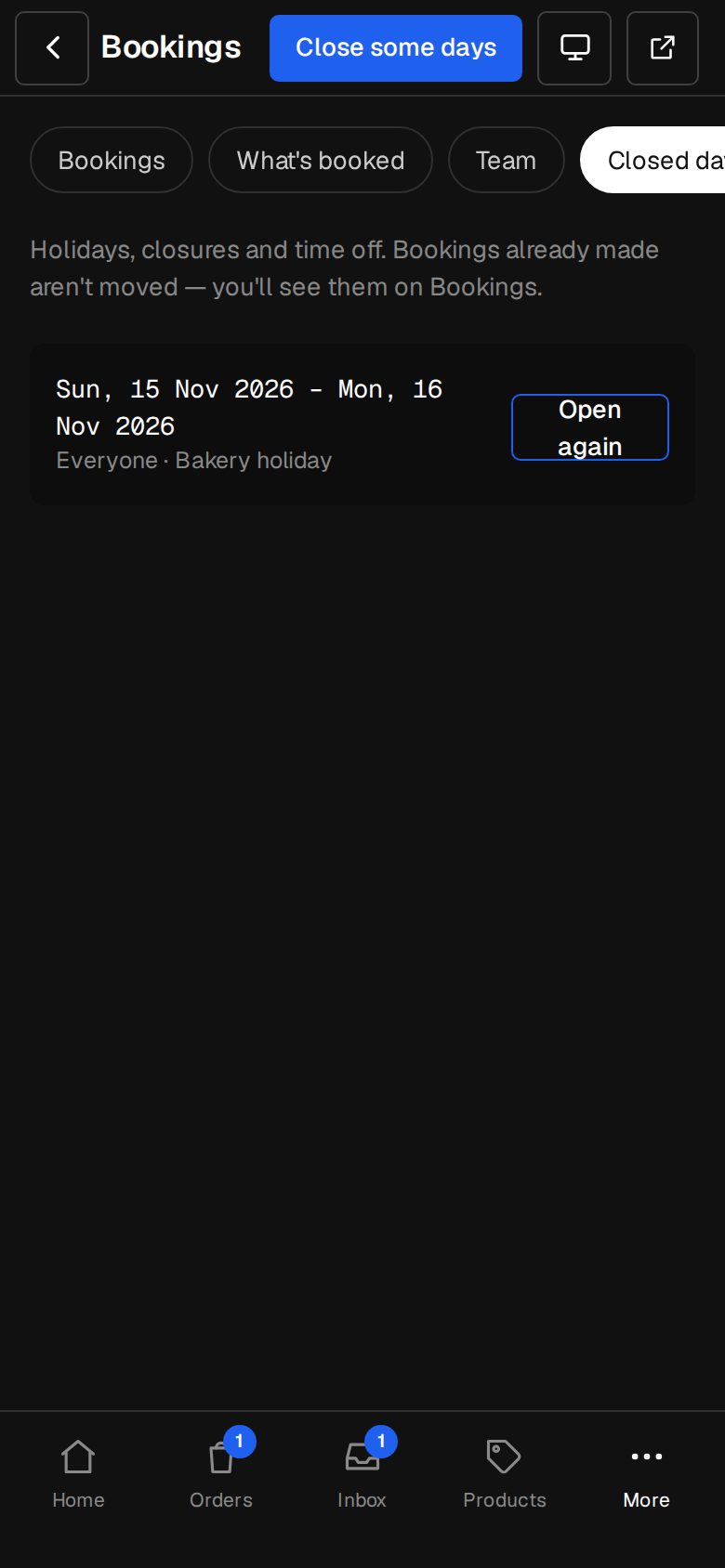
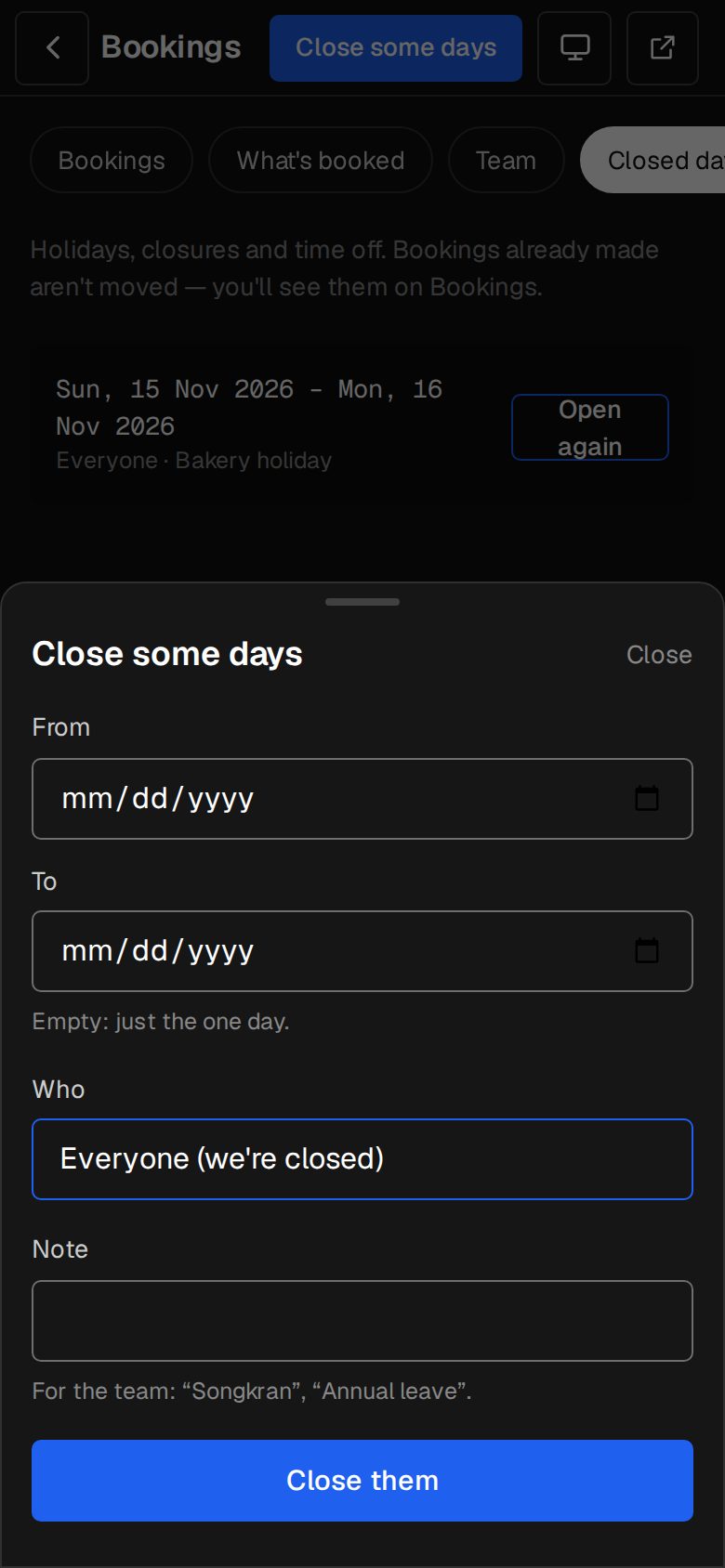
Open Closed days
Open Bookings (on a phone, tap More, then Bookings) and tap Closed days at the top.
Close some days
Tap Close some days. Pick From, and To if it's more than one day. Leave To empty for a single day.
Everyone, or one person
Under Who, choose Everyone (we're closed), or a person and is away to block only their appointments.
Add a note
Note is for the team, such as Songkran or Annual leave. Tap Close them.
Open them again
To undo it, tap Open again beside the days in the list.
Choose the reminders
In Settings, under Your site, open Bookings. Under Reminders, by email, switch A day before and Two hours before on or off. Tap Save.
Good to know
- Closing days doesn't move bookings already made then. You'll still see them on Bookings, to move or cancel.
- Reminders go only for confirmed bookings. Each one has the time, how to join for an online appointment, and a link to change it.
- A booking made less than a day ahead doesn't get the day-before reminder.
- Tell about new bookings, on the same screen, takes up to five addresses. Empty, the Owners are told. The person on your team it's with is always told.
- Days and times follow Settings · Time zone.
Was this helpful?