
Help/Inbox & contacts/Approve someone by hand
Approve someone by hand
You don't have to wait for an application. On any contact's page you can approve someone straight away, take an approval back, or clear a denial so they can apply again. Where someone stands belongs to their contact, matched by email, so a customer you've brought across can be approved before they ever sign in.
Staff can see where someone stands. This comes with the Customer approval add-on, which works inside the Shop.
2 minutesOwners and Managers change itWorks on a phone
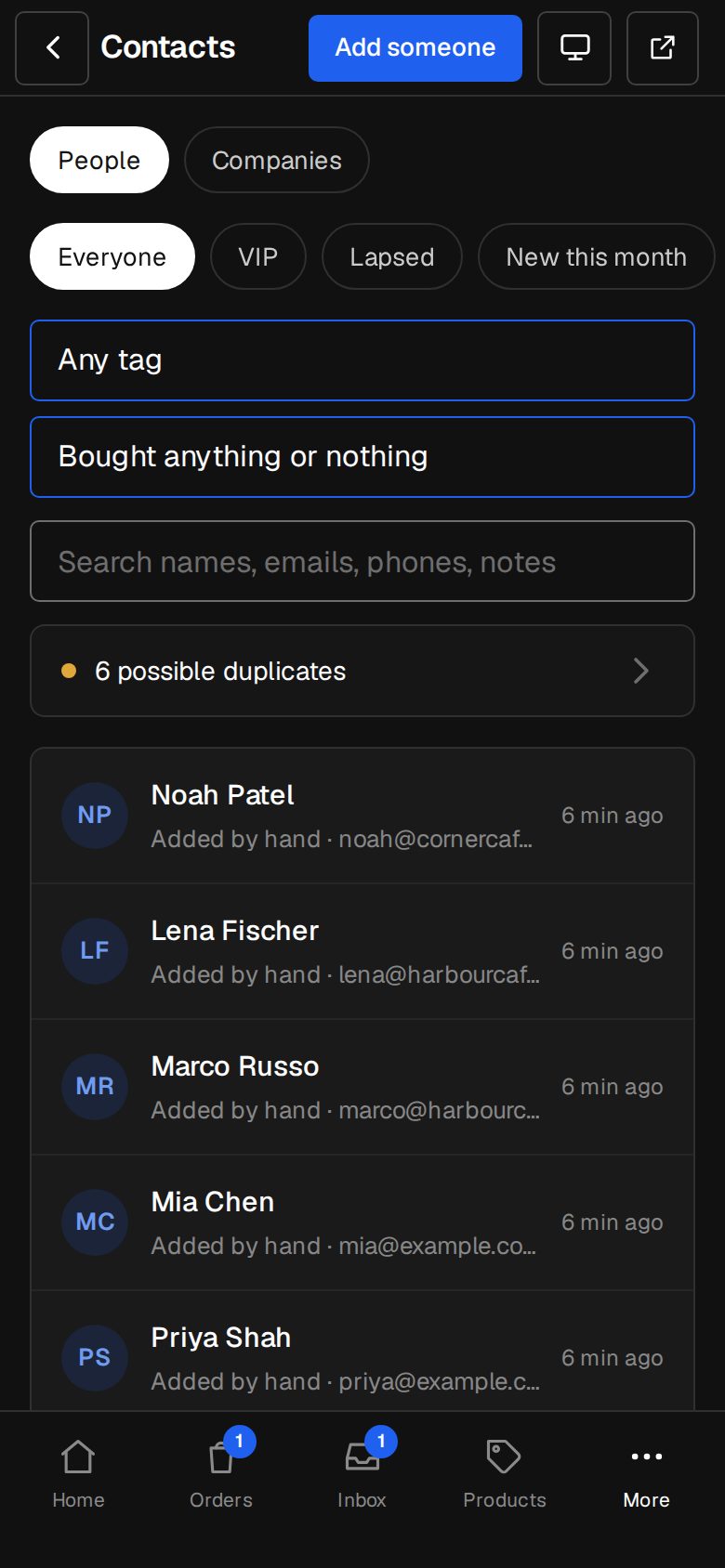
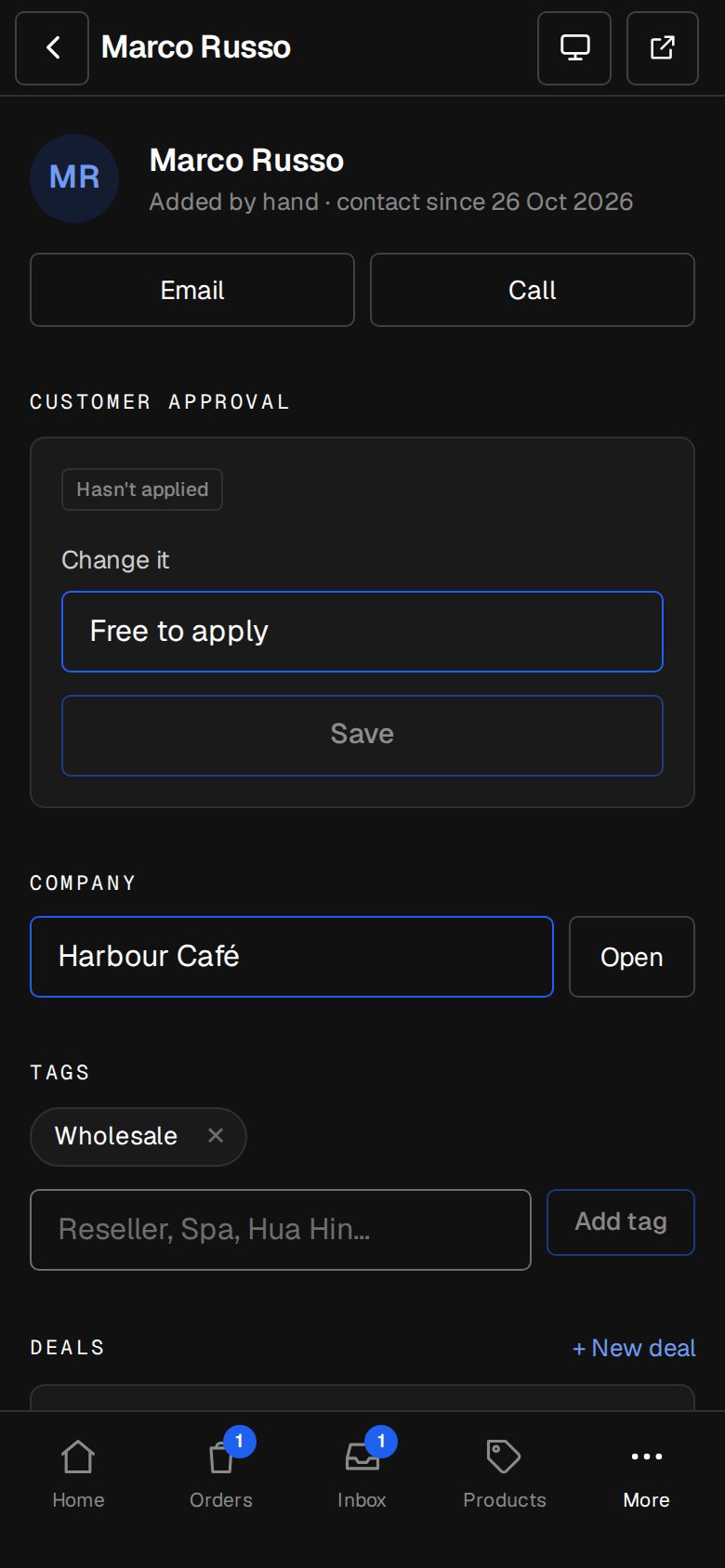
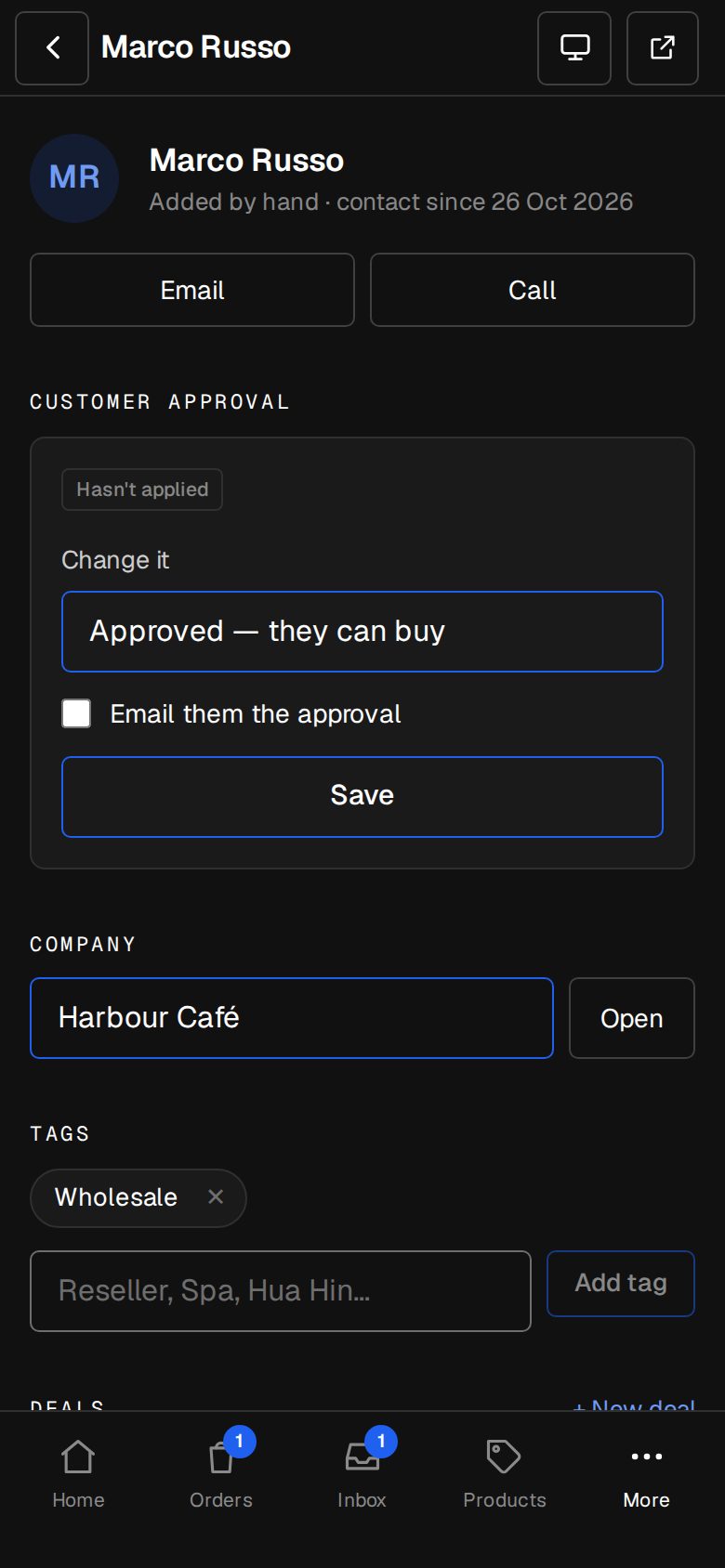
Open Contacts
On a computer, choose Contacts in the sidebar. On a phone, tap More, then Contacts. Open the person.
Find Customer approval
It shows where they stand: Hasn't applied, Waiting, Approved or Denied, with a link to their application if they've sent one.
Pick the change
Under Change it, choose Approved — they can buy, Waiting, Denied, or Free to apply. Free to apply clears a denial so they can send a new application.
Email them, if you want to
When you pick Approved or Denied, tick Email them the approval (or the denial) to send your shop's email. Leave it unticked to change it quietly.
Save
Tap Save. If an application was waiting, approving or denying here settles it too, so it leaves Waiting.
Good to know
- A contact needs an email address first: customers sign in with it.
- Bringing a whole shop across? Contacts · Import can approve or deny everyone with a given tag. See Import your customers.
- An approved customer signs in with a code emailed to them. Nobody gets in on approval alone.
- Each change is in Activity, with who made it.
Was this helpful?