
Help/Shop/Prices in your customer's currency
Prices in your customer's currency
Let customers see your prices, and pay, in their own currency. They pick it from a menu in your site's header, and every price follows: products, sets, the cart, delivery and the total. Stripe charges them in that currency and pays you out as usual.
It's off until you turn it on. Rates are the European Central Bank's, updated every day.
2 minutesWorks on a phone
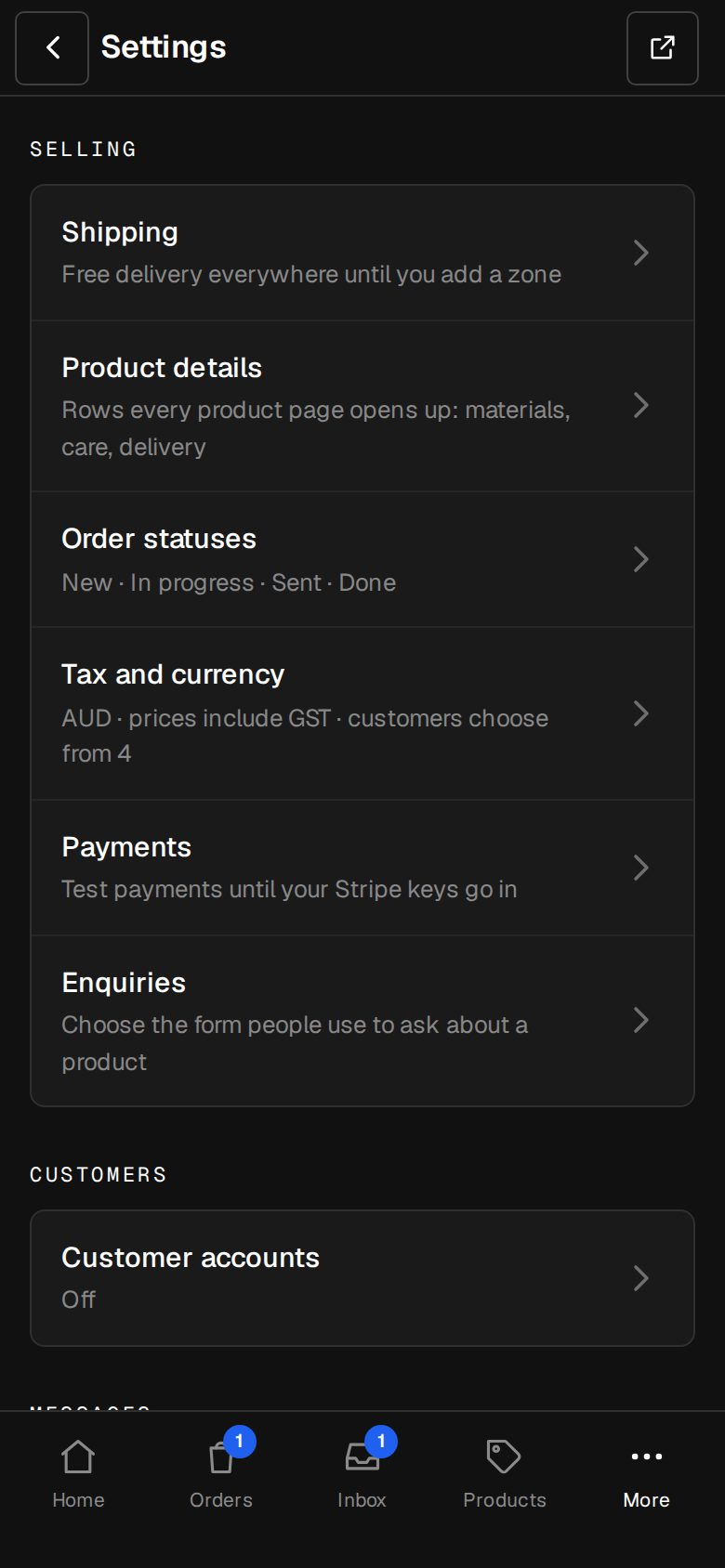
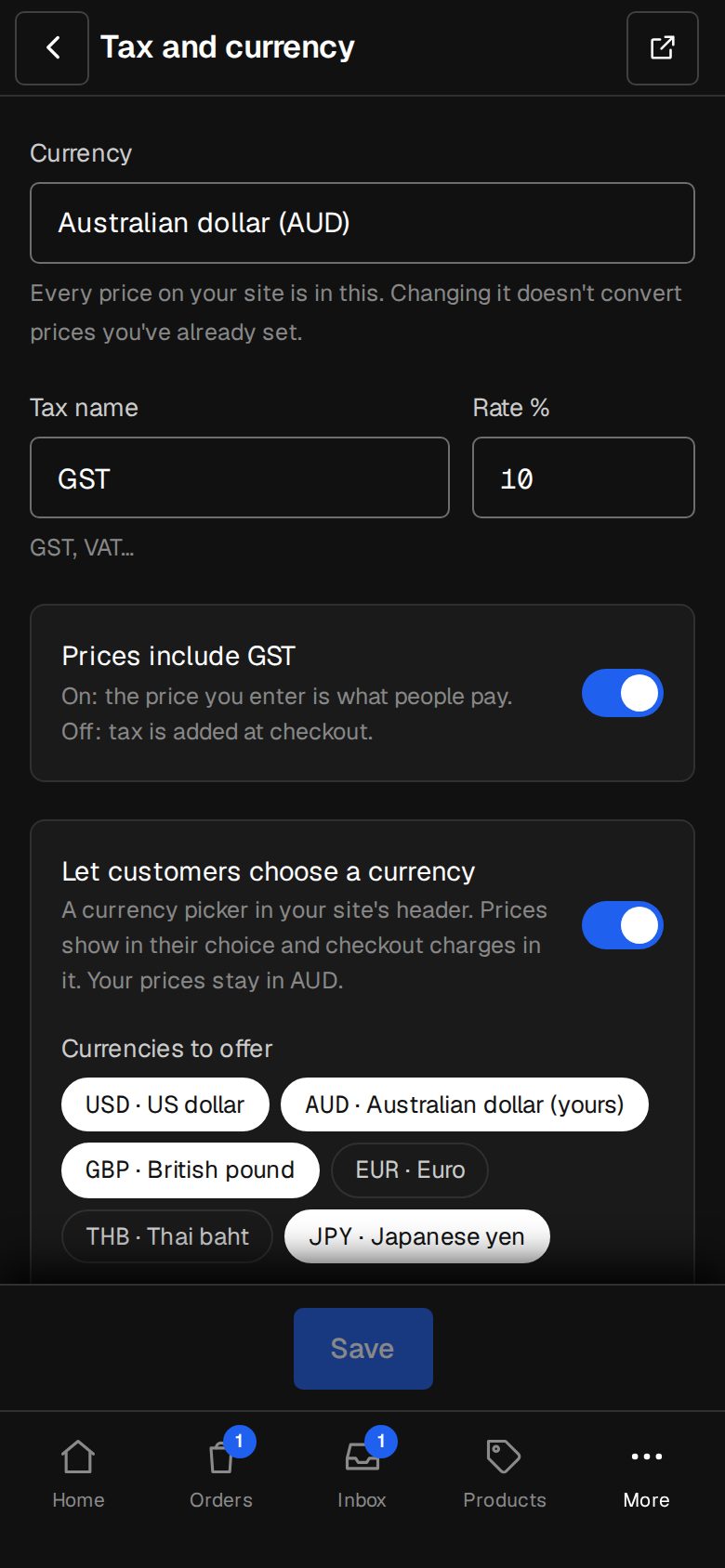
Open Settings, then Tax and currency
On a computer, choose Settings in the sidebar. On a phone, tap More, then Settings.
Turn on Let customers choose a currency
Tick the currencies to offer: US dollars, Australian dollars, pounds, euros, baht or yen. Your shop's own currency is always offered.
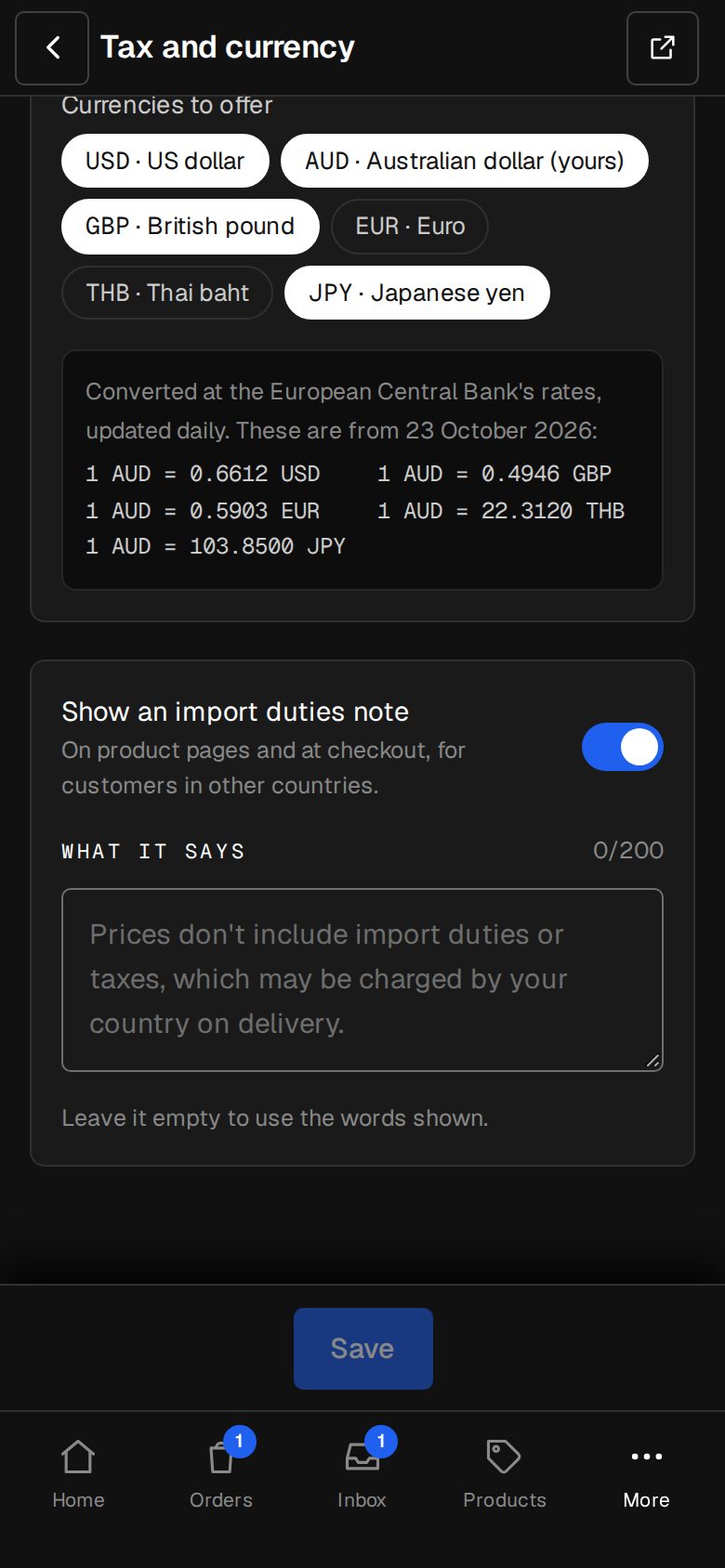
Check today's rates
The rates and the day they're from show under the list, so you can see what a customer will pay.
Add the import duties note, if you ship abroad
Turn on Show an import duties note. Product pages and checkout then say that prices don't include import duties or taxes. Leave the box empty to use our wording, or write your own.
Save
Tap Save. The currency menu appears in your site's header, and in the menu on a phone.
Good to know
- The cart tells customers they're charged in their currency at today's rate.
- Each order shows what was charged and what it was worth in your currency, for example £312.40 (US$399.00 at 0.7830). Refunds go back in the currency charged.
- If rates can't be fetched, the shop keeps yesterday's. With no rates at all, the menu hides and everything stays in your currency.
- Your prices are always set in your shop's own currency. The others are worked out from it.
Was this helpful?