
Help/Look & feel/Light or dark admin
Light or dark admin
The admin can be light, dark, or match your device, which is where it starts. It's your own choice: everyone on the team picks their own, and it follows you to any computer or phone you sign in on. Your website's own colours don't change.
2 minutesEveryone on the teamWorks on a phone
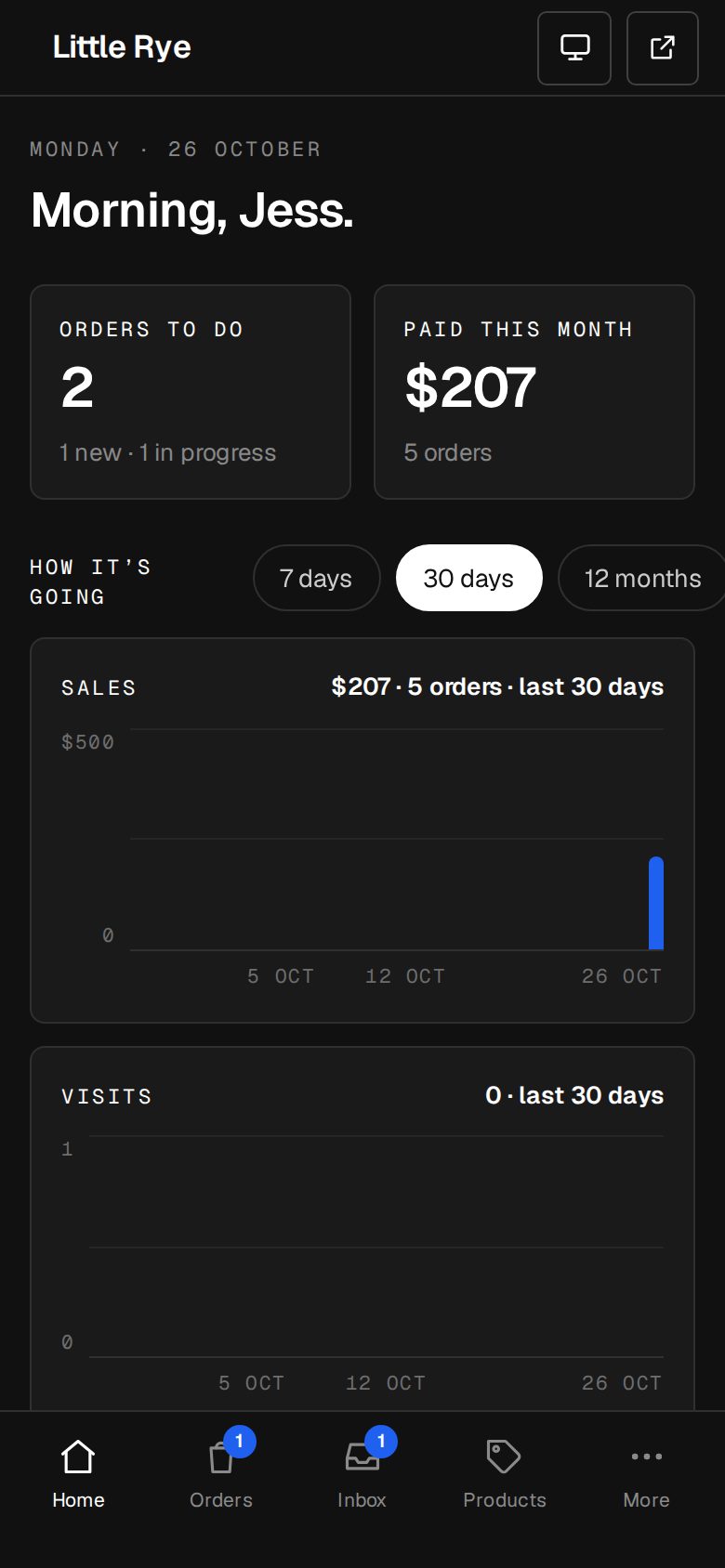
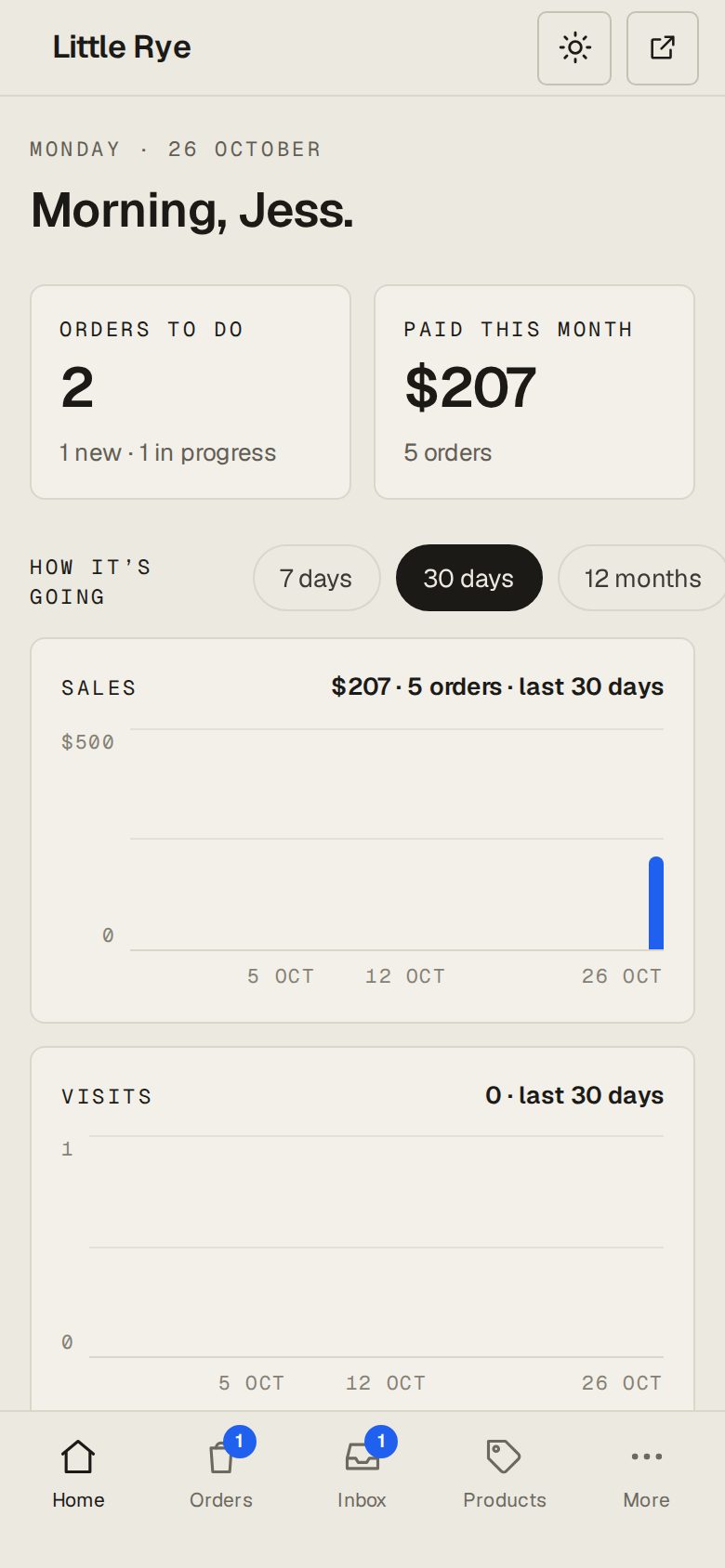
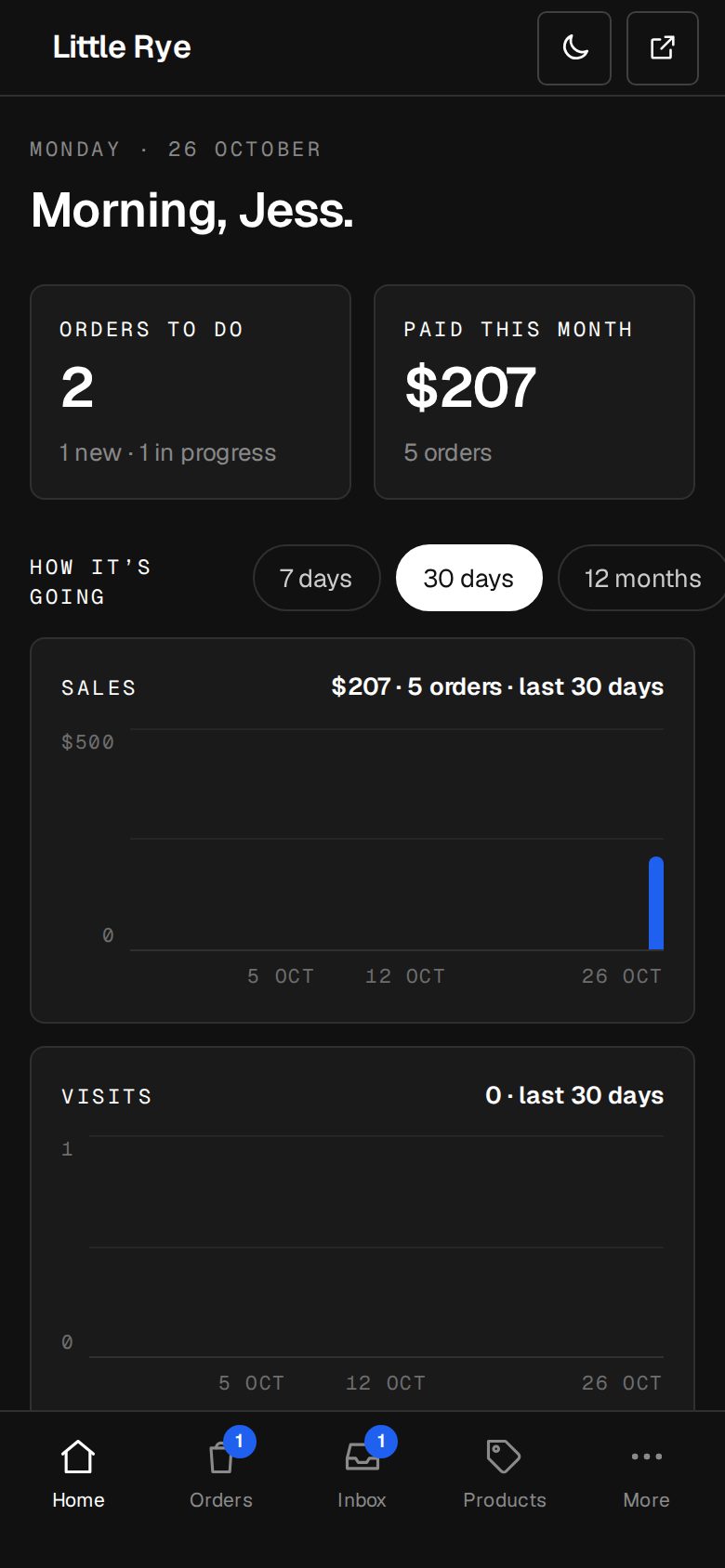
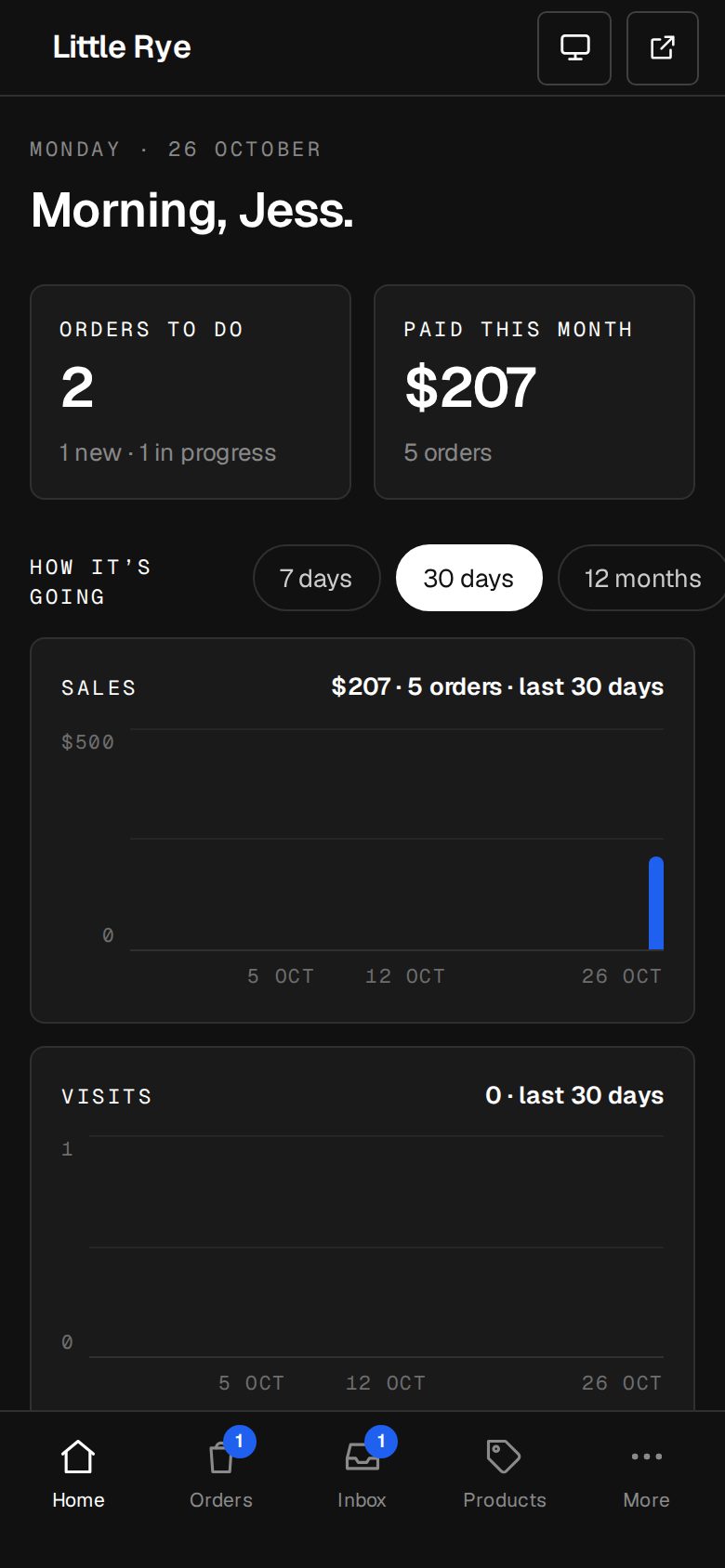
Find the switch
It's at the right of the header, at the top of every admin screen.
On a computer, pick one
There are three buttons side by side: a sun for Light, a moon for Dark, and a screen for Match my device. Tap one and the admin changes at once.
On a phone, step through
There's one button showing what's on now. Each tap moves to the next: Light, then Dark, then Match my device, then back to Light.
Carry on
There's nothing to save. Your choice is kept with your account straight away.
Good to know
- Match my device follows your computer's or phone's own light or dark setting, so it can change at sunset if your device does.
- On a new computer or browser, the admin picks up your choice once it opens.
- Your site's look comes from Settings · Branding. This switch only changes the admin.
Questions
Will my customers see the admin in light mode?
Customers never see the admin. Your website looks the same whichever you choose here.
Someone on my team prefers dark.
That's fine. Each person's choice is their own and doesn't change anyone else's.
Was this helpful?