
Help/Shop/Count stock across shops and a warehouse
Count stock across shops and a warehouse
Inventory keeps a count of each product at each place you keep stock: your shops and a warehouse. Your website sells the total of the places that sell online, and each sale comes off the right count. You can move stock between places, do a stocktake and see what's running low.
Inventory is an add-on that works inside the Shop. An Owner adds it under Settings · Plan, in Add to your plan, where it sits under the Shop.
2 minutesOwners and ManagersWorks on a phone
Add your locations
Open Settings, then Inventory, under Selling (on a phone, tap More, then Settings). Under Add a location, type a Name, choose Shop or Warehouse, and turn on Sells online if its stock counts on your website. Tap Add location.
Put them in order
Online orders take stock from the selling-online locations in the order listed. Use the arrows to move one up or down. Put the warehouse first to sell from it before the shops.
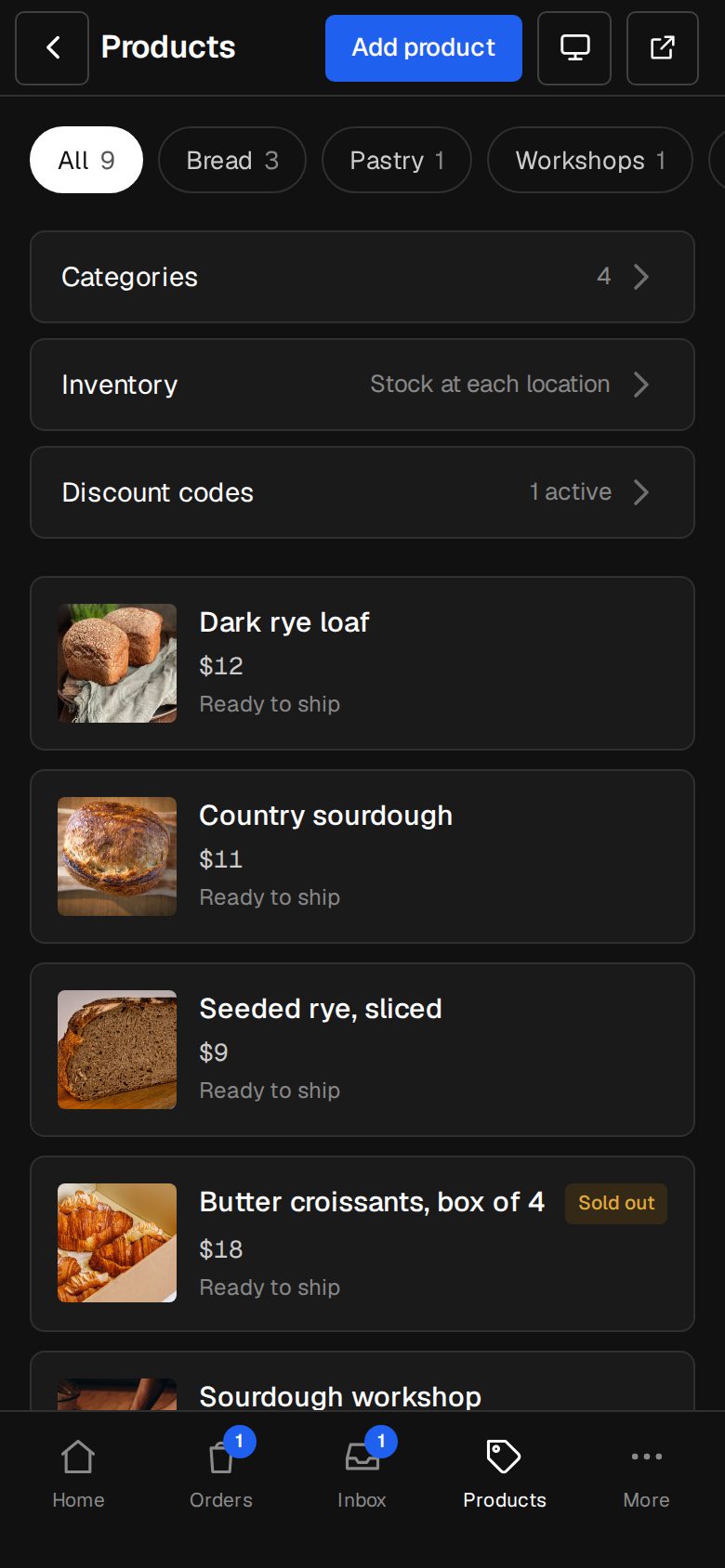
Open Products, then Inventory
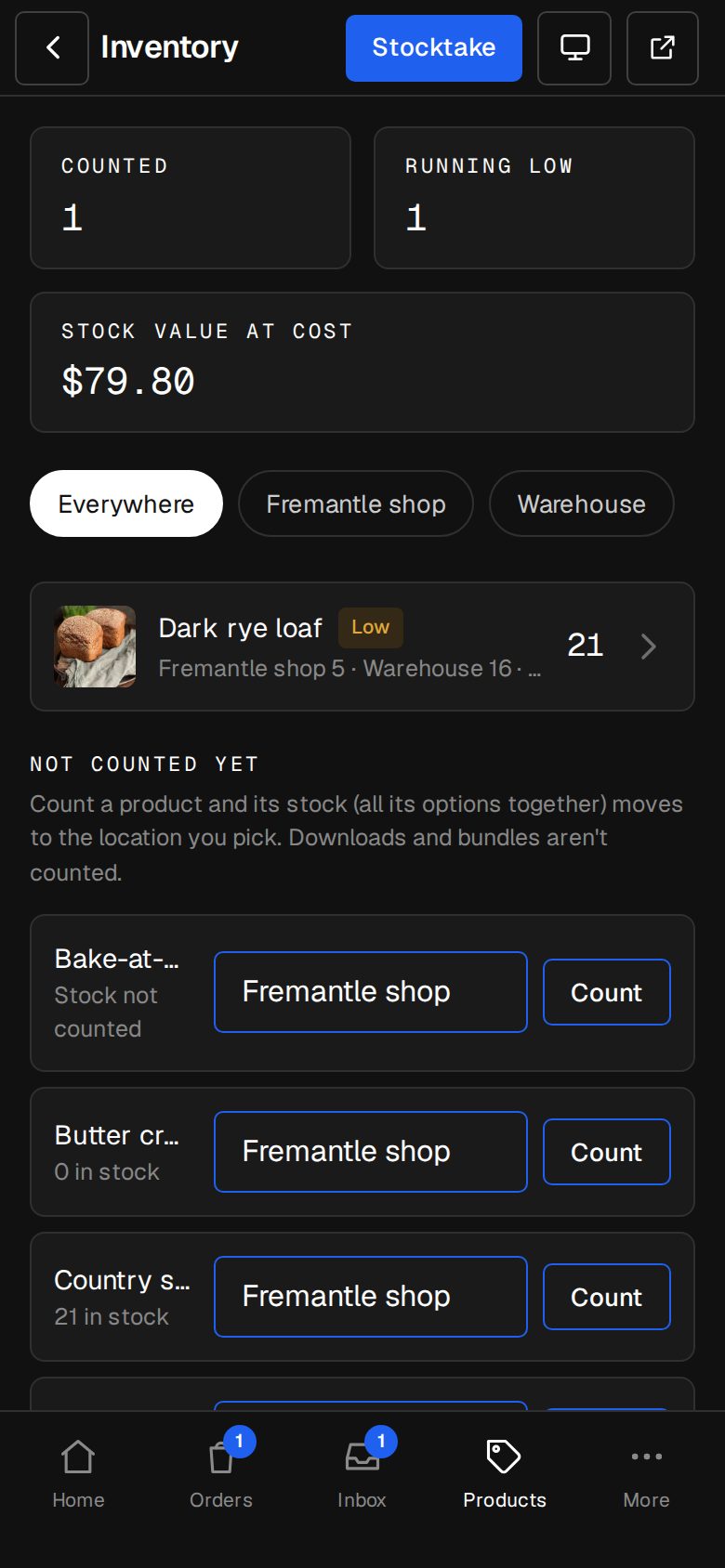
On a phone, tap Products in the bar at the bottom, then Inventory.
Start counting a product
Under Not counted yet, pick the location beside a product and tap Count. Its stock, all its options together, moves there.
Set the counts
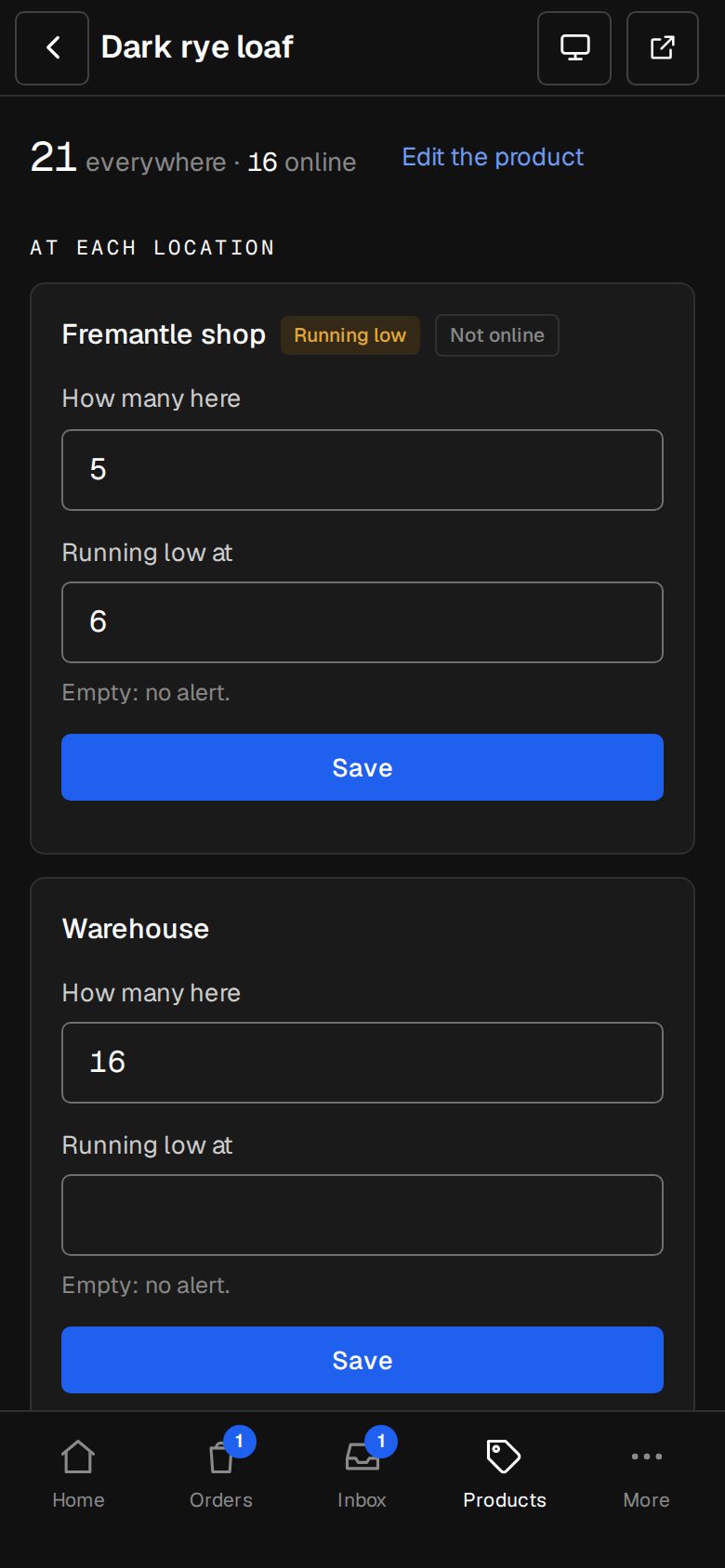
Tap a counted product. At each location, type How many here and Running low at, then Save. A changed count asks Why it changed, optional. What it costs you takes the Cost of one, for the stock value.
Move stock
With two or more locations, use Move stock: From, To, How many, then Move.
Do a stocktake
On Inventory, tap Stocktake and pick the location. Type what you count beside each product; differences show as you go. Add a Note and tap Correct, or Finish stocktake if nothing changed.
Good to know
- Anything running low shows a Low pill, and on Home under Needs you today. Settings · Who gets notified sets who's emailed.
- A refunded order's stock goes back once the whole order is refunded.
- Every change is in the product's History, with who made it.
- Downloads and bundles aren't counted.
- Stop counting in Inventory, at the bottom of a product, puts its online total back as its own stock.
- A location is archived, never deleted, and has to be empty first.
Was this helpful?