
Help/Shop/Show the right photo for each option
Show the right photo for each option
When a product comes in several colours or models, customers want to see the one they pick. You can link a photo to each value of an option, such as each colour, and give a whole combination its own set of photos. The product page then shows the right ones as they choose.
The shop is an add-on. If you can't see Orders or Products, an Owner can add it under Settings · Plan, in Add to your plan.
2 minutesOwners and ManagersWorks on a phone
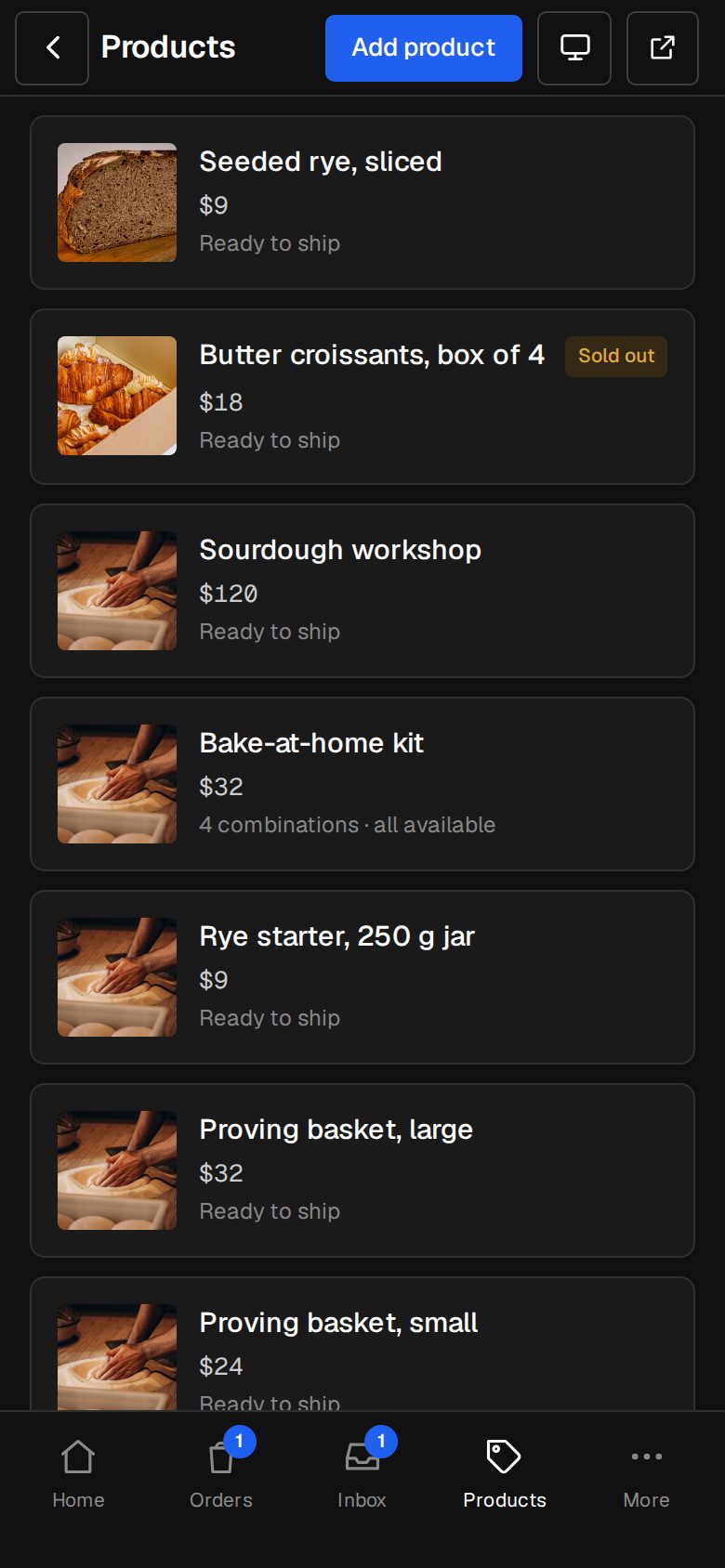
Add every photo to the product
Open the product from Products and add all its photos first, one for each colour or view. Option and combination photos are picked from these.
Set up the option
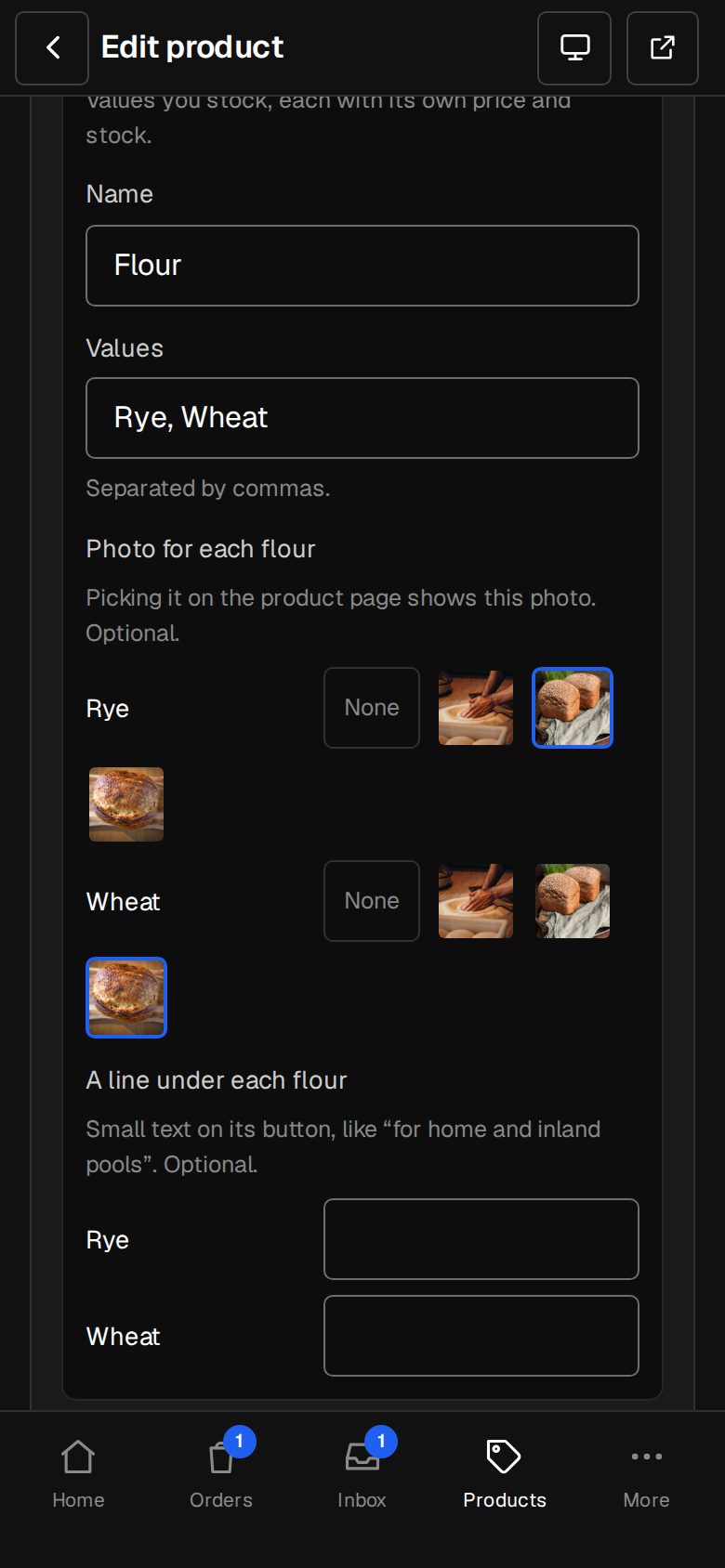
Turn on This product has options. Choose Choose from a list, name it (Colour) and type its Values with commas.
Pick a photo for each value
Under Photo for each colour, tap a photo beside each value, or None. Picking that value on the product page then shows its photo big.
Give a combination its own photos
For more than one picture per choice, tap a combination in the list. Under Its photos, tap the ones it shows, in order, up to 12. Tap one again to take it off. None means the product's own photos.
Save the combination
Tap Save combination. Do the same for each combination that needs its own pictures.
Check it on your site
Tap View site in the header and open the product. Pick each option and watch the gallery change.
How the gallery chooses
- Tapping a value shows its photo big.
- Once every option is picked, a combination with photos of its own shows only those, in your order.
- Moving from one combination to another shows the first photo that changed. If Model A and Model B share a front photo but not a back one, it shows the back.
- Remove a photo from the product and any option or combination link to it goes too.
Was this helpful?