
Help/Shop/Sell only to customers you approve
Sell only to customers you approve
Customer approval keeps your shop for the people you say yes to. Customers sign in with their email, fill in an application, and your team approves or denies each one. Only approved customers can check out, and you choose whether anyone else can look round first.
Customer approval is an add-on that works inside the Shop. An Owner adds it under Settings · Plan, in Add to your plan, where it sits under the Shop. Adding it switches customer accounts on, since people apply from their account.
3 minutesOwners and ManagersWorks on a phone
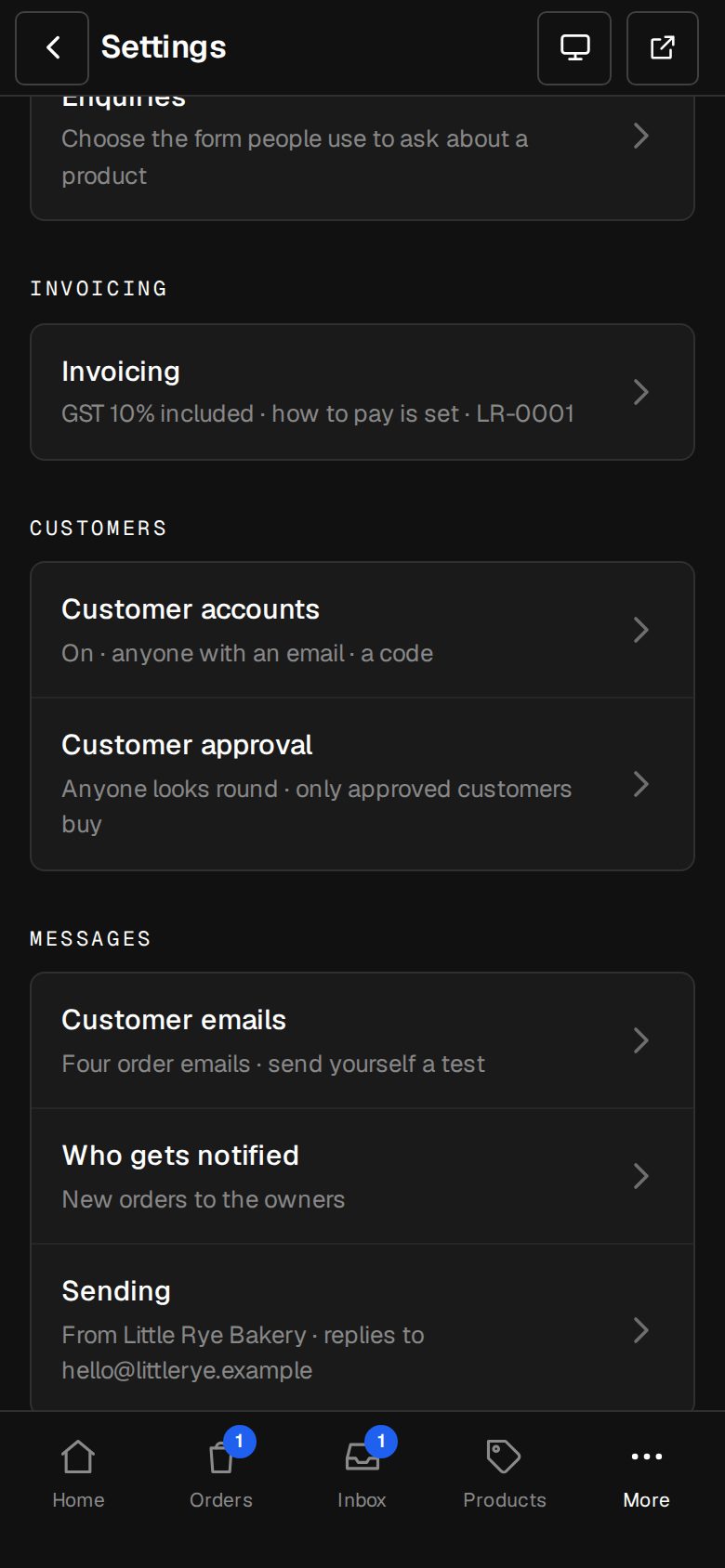
Open Settings, then Customer approval
On a computer, choose Settings in the sidebar. On a phone, tap More, then Settings. It's under Customers, beside Customer accounts.
Choose who can look round
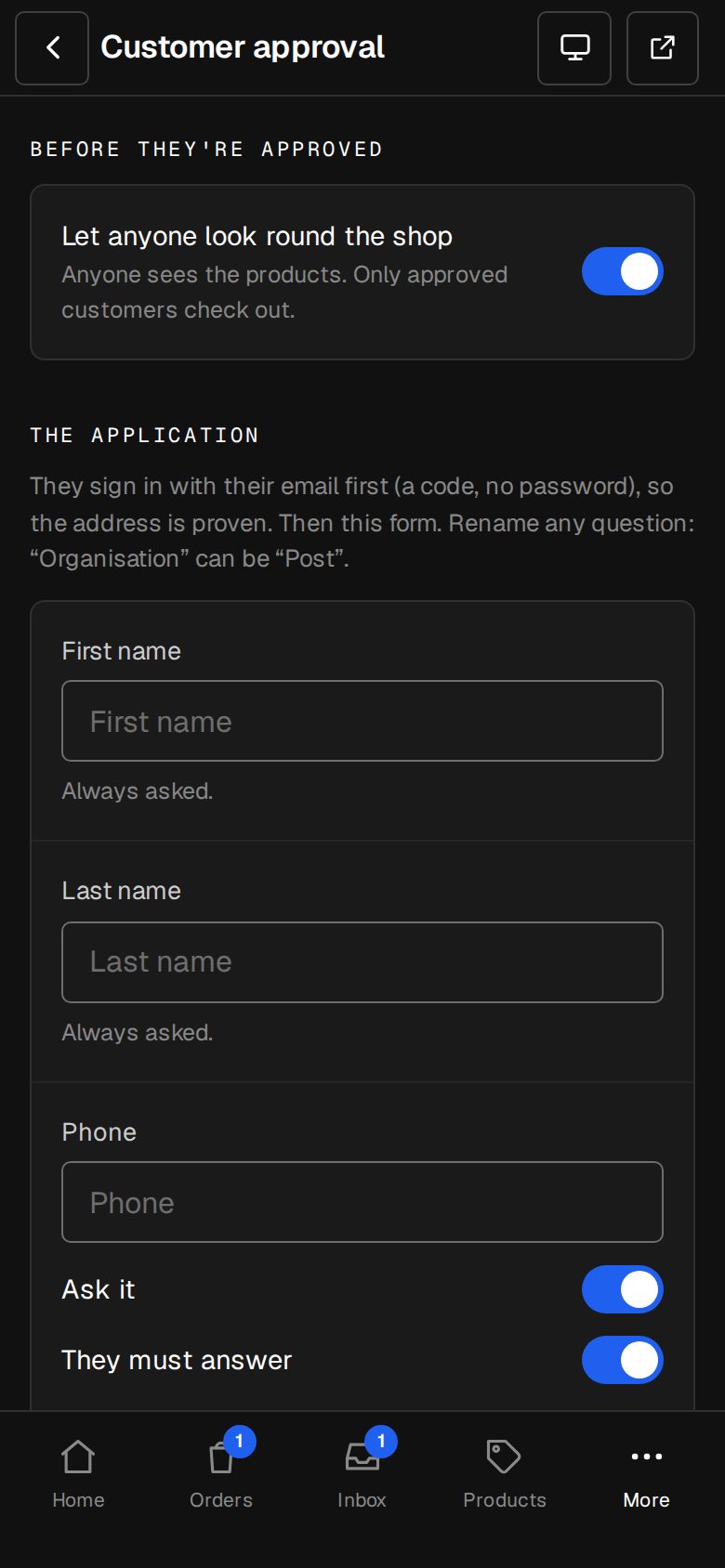
Under Before they're approved, Let anyone look round the shop on means anyone sees the products and only approved customers check out. Off, products, the cart and checkout are for approved customers only, and everyone else is asked to sign in or apply. Your pages stay open.
Set up the application
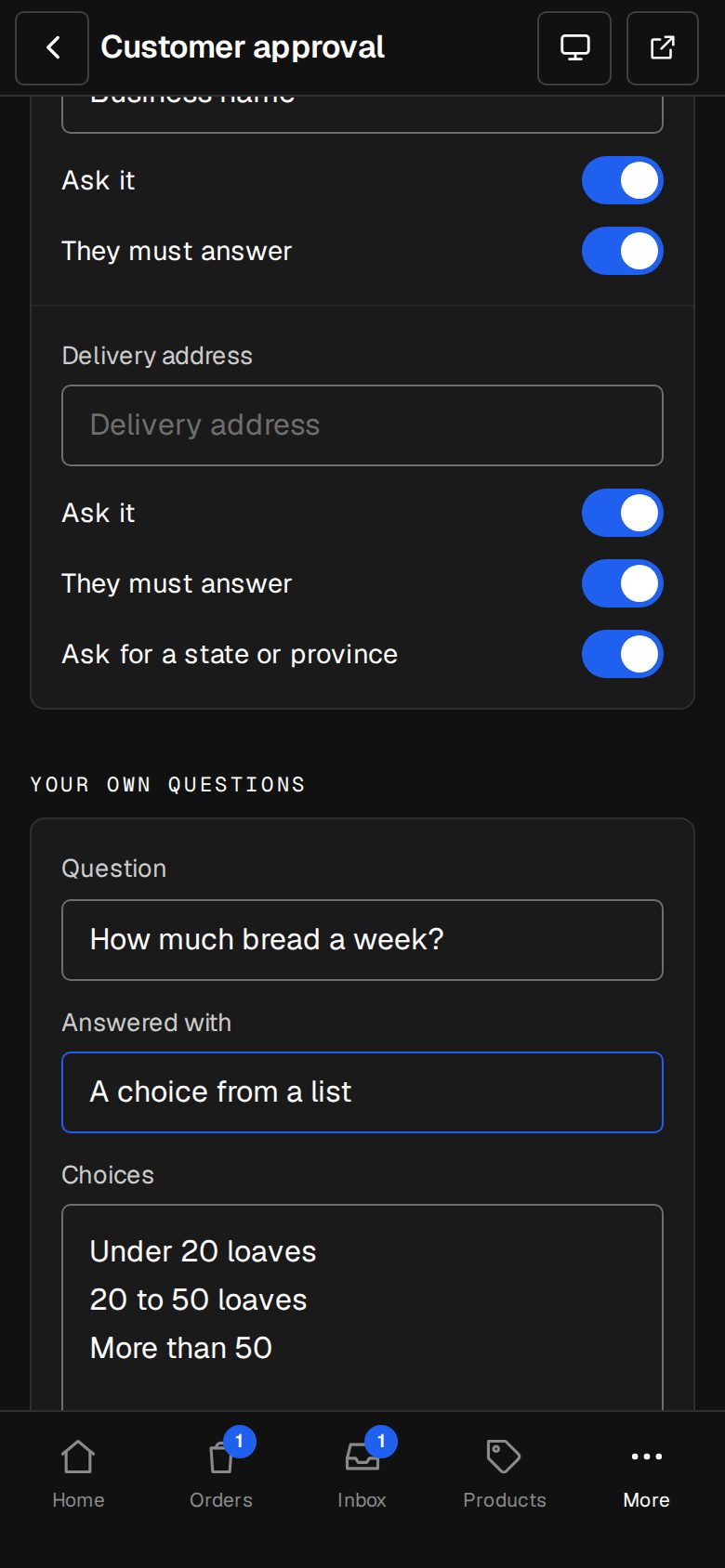
Under The application, First name and Last name are always asked. Phone, Role or title, Organisation and Delivery address each have Ask it and They must answer. Type in a box to rename a question, such as Organisation to Post. With the address, choose whether to Ask for a state or province.
Add your own questions
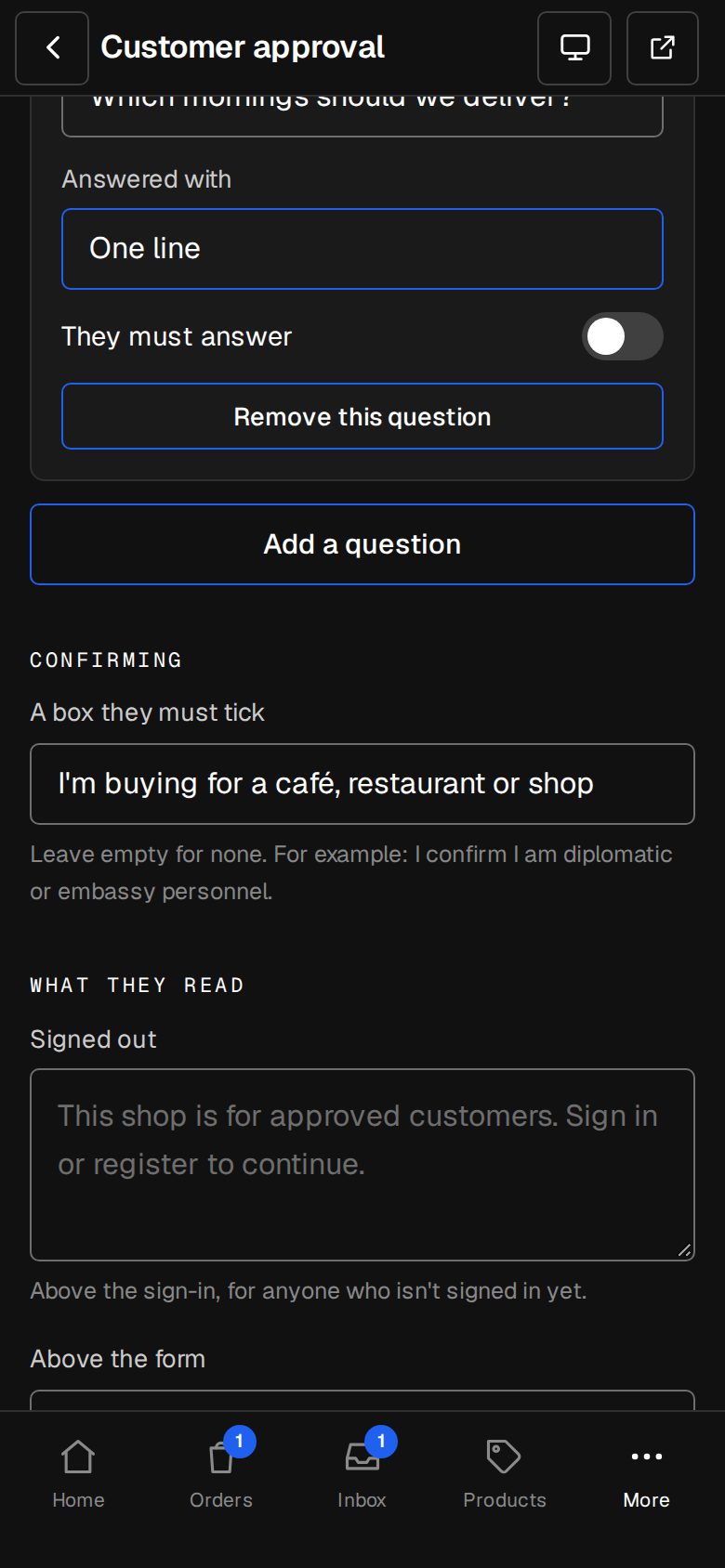
Tap Add a question, up to ten. Give each a Question, choose Answered with (One line, A few lines, or A choice from a list, with the choices one per line) and whether They must answer.
Add a box to tick, if you want one
Under Confirming, A box they must tick holds a line they agree to before sending, such as I confirm I am diplomatic or embassy personnel. Leave it empty for none.
Write what they read and receive
Under What they read, set the words for Signed out, Above the form, Waiting and Denied. Under The emails, set the approved and denied subject and message. {shop}, {name} and {link} fill in your shop's name, their first name and the way to sign in. Leave a box empty to use our own words.
Choose who's told
Under Who's told of a new application, add up to ten Email addresses, one per line. Leave it empty and the Owners are told. Then tap Save.
Good to know
- The email to your team says who applied and links to the application. The answers stay in the admin.
- Their answers fill in their name, phone and delivery address on their account.
- Customer accounts can't be turned off while Customer approval is on.
- Applications are decided in Applications.
Was this helpful?